General Settings #

Timezone
Select your timezone. The scheduling will follow timezone that you select here.
Google Analytics Campaign Tracking
Enable campaign tracking if you want to see how much traffic is generated by Mingle Social Auto Poster PHP Script.
Enable Social Posting Logs
Enable this to store your social posting activities into the database which can be viewed from “Logs” section.
Enable Timestamp Link
Enable this to send timestamp with Social Link post.
Debug Log
You can check posting system log at a specific location./public_html/sap-script/sap-script-logs/sap_log_819964970f215acd360cda79d1d80905.txt
Facebook Settings #

General Settings #
Enable Autoposting
Check this box, if you want to automatically post your new content to Facebook.
Proxy Settings #
Using this method you will be able to configure your Facebook posting using Proxy Servers.

Enable Proxy
Enable / Disable Proxy setting for Facebook.
Proxy URL
Insert your private or public Proxy Domain URL / IP address.
Proxy Username
Insert Your proxy User Name or Login ID.
Proxy Password
Insert Your proxy Password / Credentials for logins.
Facebook APP method #
Using this method you will be able to configure your Facebook account using our App method.

Add accounts
Just click on add accounts and authorize your Facebook account within the script settings. Once you authorize your Facebook account, you will be able to configure your Facebook account within the script settings.
Facebook Graph API #
Here, You have to enter the Facebook App ID and App Secret.
Note: Now, you can set multiple Facebook accounts to which you want to auto post the content.

Facebook App ID/API Key
Here you can enter Facebook App ID / API Key.
Facebook App Secret
Here you can enter Facebook App Secret.
Valid OAuth redirect URIs
Copy the valid OAuth redirect URIs value and paste the url to the Facebook App Valid OAuth redirect URIs field.
Allowing permissions
After adding Facebook App ID and App Secret click on Save button. After saved your API details click on Grant extended permission link.
Prevent access to my linked accounts
Check this option to make all of your linked Facebook Accounts unaccessible to the script. This means that you will only be able to post to your personal Facebook Account/Profile.
Autopost Settings #
Autopost Posts to Facebook of this user(s)
Select each of the users for that you want to automatically post to Facebook when new post published.
Share posting type
Here you can select the share posting method as link posting, image posting, or reel posting.
- Link Posting – Autopost links to Facebook using this option
- Image Posting – Autopost images to Facebook using this option
- Facebook Post Image: Here you can upload a default image that will be used for the Facebook post.
- Reel Posting – Autopost Reel to Facebook using this option
- Facebook Reel Video: Here you can upload a default video that will be used for the Facebook post.
Note: If you’re using reel posting and encountering timeout issues, you need to increase your server timeout setting to 180 seconds.
Twitter Settings #

General Settings #
Enable Autoposting
Check this box, if you want to automatically post your new content to Twitter.
API Settings #
Here, You have to enter Twitter Consumer Key, Consumer Secret, Access Token, Access Token Secret.
Note: Now you can set as many Twitter accounts as you want to autopost the content.
Autopost Settings #
Autopost Posts to Twitter of this user(s)
Select each of the users for that you want to automatically post to Twitter when new post published.
Disable Image posting
Check this box, if you want to disable image posting for Twitter.
Tweet Image
Select Tweet image.
LinkedIn Settings #

General Settings #
Enable Autoposting
Check this box, if you want to automatically post your new content to LinkedIn.
API Settings #
Here, You have to enter LinkedIn App ID/API Key, LinkedIn App Secret.
Note: You can set as many LinkedIn accounts as you want to autopost the content.
Enable Company Pages
Check this box, if you want to enable company pages
Valid OAuth redirect URIs #
Copy the valid OAuth redirect URIs value and paste the URL to the LinkedIn App OAuth 2.0 Redirect URIs field.
Grant Extended Permissions #
Allowing permissions
To be able to autopost to your LinkedIn Accounts, you need to grant extended permissions. Click on the ‘Grant extended permissions’ link. This will connect the script with your previously created LinkedIn App. When you go through the steps while connecting the script to your LinkedIn App you need to give all the asked permissions. Remember: You give the permissions to your own App, so you won’t get spammed from someone else then your self 🙂
LinkedIn APP Method Settings #
Here, You can configure your Linkedin Account with Single Click Sign up

Add Linkedin Account
Just click on add accounts and authorize your Linkedin account within the script settings. Once you authorize your Linkedin account, you will be able to configure your Linkedin account within the script settings.
Note: If you are using Linkedin Company Pages for posting Make sure you enable Company Pages Option before you add your Linkedin account.
Autopost Settings #
Autopost Posts to LinkedIn of this user(s)
Select each of the users for that you want to automatically post to LinkedIn when new post published.
Disable Image posting
Check this box, if you want to disable image posting for LinkedIn.
LinkedIn Image
Select LinkedIn image.
Tumblr Settings #

General Settings #
Enable Autoposting
Check this box, if you want to automatically post your new content to Tumblr.
Post Content
Choose option whatever you want to post the full content or just a snippet to your Tumblr page. If you choose snippets, the script will post the first 200 characters from your post. You always have the ability to customize that within the meta box.
Tumblr API Settings #
There are two method for connecting with Tumblr. Either to use Tumblr APP Method OR Tumblr Graph API
Tumblr App Method: If you’re selecting this method you don’t have to create an app for posting, you can use our Graph API.
Tumblr API Method: If you’re selecting this method you have to create your app for posting, click here for steps to create your own app.
Tumblr APP method #
Select this method to configure your Tumblr account using our app.

Add accounts
Just click on add accounts and authorize your Tumblr account within the script settings. Once you authorize your Tumblr account, you will be able to configure your Tumblr account within the script settings.
API Settings #
Here, You have to enter Tumblr OAuth Consumer Key, Tumblr Secret Key.
Grant Extended Permissions #
Allowing permissions
Once you perform the “Grant extended permissions” the script will connect with your previously created Tumblr App. When you go through the steps while connecting the script to your Tumblr App you need to give all the asked permissions. Remember: You give the permissions to your own App, so you won’t get spammed from someone else then your self 🙂
Note: OAuth Redirect URI for your Tumblr APP is same as your domain URL. ( Eg. https://www.example.com )
Autopost Settings #
Select Accounts
Select each of the users for that you want to automatically post to Tumblr when new post published.
Posting Type
Choose posting type which you want to use, Default is Text posting.
Post Image
Here you can upload a default image which will be used for the tumblr post.
Pinterest Settings #

General Settings #
Enable Autoposting to Pinterest
Check this box, if you want to automatically post your new content to Pinterest.
Proxy Settings #
Using this method you will be able to configure your Pinterest posting using Proxy Servers.

Enable Proxy
Enable / Disable Proxy setting for Pinterest.
Proxy URL
Insert your private or public Proxy Domain URL / IP address.
Proxy Username
Insert Your proxy User Name or Login ID.
Proxy Password
Insert Your proxy Password / Credentials for logins.
Pinterest API Settings #
Here, You have to enter Pinterest App ID and Pinterest App Secret, check Pinterest APP method for more information about App creation.

Here, You have to enter Pinterest App ID, App Secret. Once inserted Save the settings and do Grant Extended Permission.
Note: Now you can set as many Pinterest accounts as you want to autopost the content.
Autopost Settings #
Autopost Posts to Pinterest of this user(s)
Select each of the users for that you want to automatically post to Pinterest when new post published.
Pinterest Post Image
Here you can upload a default image which will be used for the pinterest post.
Google My Business Settings #

General Settings #
Enable Autoposting to Google My Business
Check this box, if you want to automatically post your new content to Google My Business.
Add accounts
Just click on add accounts and authorize your Google My Business account within the script settings. Once you authorize your Google My Business account, you will be able to configure your Google My Business account within the script settings.
Autopost Settings #
Google My Business – Button Type
Choose posting type which you want to use, Default is Book posting.
Autopost Posts to Google My Business of this user(s)
Select each of the users for that you want to automatically post to Google My Business when new post published.
Google My Business Post Image
Here you can upload a default image that will be used for the google my business post.
Instagram Settings #

Note: For Instagram posting you should have Instagram business account and that account should connected with the Facebook page. Also, the authorization process would be handled by Facebook Graph API so, it would be via Facebook only.
General Settings #
Enable Autoposting
Check this box, if you want to automatically post your new content to Instagram.
Add accounts
Just click on add accounts and authorize your Instagram account within the script settings. Once you authorize your Instagram account, you will be able to configure your Instagram account within the script settings.
Autopost Settings #
Autopost Posts to Instagram of this user(s)
Select each of the users that you want to automatically post to Instagram when a new post is published.
Share posting type
Here you can select the share posting method as an image posting or reel posting.
- Image Posting – Autopost images to Instagram using this option
- Instagram Post Image: Here you can upload a default image that will be used for the Instagram post.
- Reel Posting – Autopost Reel to Instagram using this option
- Instagram Reel Video: Here you can upload a default video that will be used for the Instagram reel.
Note: If you’re using reel posting and encountering timeout issues, you need to increase your server timeout setting to 180 seconds.
Threads Settings #

General Settings #
Enable Autoposting
Check this box, if you want to automatically post your new content to Threads.
Add accounts
Just click on add accounts and authorize your Threads account within the script settings. Once you authorize your Threads account, you will be able to configure your Threads account within the script settings.
Autopost Settings #
Autopost Posts to Threads of this user(s)
Select each of the users that you want to automatically post to Threads when a new post is published.
Share posting type
Here you can select the share posting method as Text Posting, image posting or video posting.
- Text Posting – Autopost Text to Threads using this option.
- Image Posting – Autopost images to Threads using this option
- Threads Post Image: Here you can upload a default image that will be used for the Threads post.
- Video Posting – Autopost video to Threads using this option
- Threads Video: Here you can upload a default video that will be used for the Threads video posting.
Note: If you’re using Video posting and encountering timeout issues, you need to increase your server timeout setting to 180 seconds.
Reddit Settings #

General Settings #
Enable Autoposting
Check this box, if you want to enable posting to Reddit.
Add accounts
Just click on add accounts and authorize your Reddit account within the script settings. Once you authorize your Reddit account, you will be able to configure your Reddit account within the script settings.
Map Your Flair
This setting allows you to assign specific flairs to your Reddit posts based on the account or community you’ve joined. Flairs help categorize and identify the type of content being shared, ensuring better visibility and subreddit rules. To map a flair, click on “Map Flair” button, select the desired Flair for different Community from the available options.


Autopost Settings #
Autopost Posts to Reddit of this User(s)
Select each of the users that you want to automatically post to Instagram when a new post is published.
Disable Image posting
Check this box, if you want to disable image posting for Reddit.
Reddit Post Image
Here you can upload a default image that will be used for the Reddit post.
Youtube Settings #

General Settings #
Enable Autoposting
Check this box, if you want to enable posting to Youtube.
API Settings #
Here, You have to enter YouTube OAuth API Key, YouTube Secret Key.
Grant Extended Permissions #
Allowing permissions
Once you perform the “Grant extended permissions” the mingle will connect with your previously created YouTube App. When you go through the steps while connecting the mingle to your YouTube App you need to give all the asked permissions. Remember: You give the permissions to your own App, so you won’t get spammed from someone else then your self 🙂
Autopost Settings #
Autopost Posts to Youtube of this User(s)
Select each of the users that you want to automatically post to Youtube when a new post is published.
Youtube Post Video
Here you can upload a video that will be used for the Youtube post.
Blogger Settings #

Blogger General Settings #
Enable Autoposting to Blogger
Check this box, if you want to enable posting to Blogger.
Add accounts
Just click on add accounts and authorize your Google account within the script settings. Once you authorize your Google account, you will be able to configure your Blogger account within the script settings.
Autopost to Blogger #
Blogger URL
Here Insert Blogger URL for Default Post when none selected with Content for posting.
Autopost Posts to Blogger of this User(s)
Select the User for the Blogger Account Default Posting.
Blogger Post Image
Select Default Image for Post if non Selected with Content.
WordPress Settings #

WordPress General Settings #
Enable Autoposting
Check this box, if you want to post your new content to WordPress automatically.
WordPress Websites Settings #
Website Name
Enter your WordPress website name
Website URL
Enter your WordPress website URL for example. https://example.com OR example.com
Website Username
Enter your WordPress website username
Website Password
Enter your WordPress website password
Autopost Settings #
Map WordPress post types
Once you click on Add WordPress site, you’ll be able to choose which post type you want to autopost to a specific WordPress Site. You’ll see a list of all registered post types and a drop-down from where you can choose on which WordPress site you want to post each of these content types.

Custom Title
Here you can enter a default post title which will be used for the WordPress post.
WordPress Post Image
Here you can upload a default image which will be used for the WordPress post.
Quick Post #
Quickly share a single post to any network.

Custom Message
Here you can enter default message which will be used for the wall post.
Image
Here you can upload the default image which will be used for the wall post.
Note: Video Posting is only supported with Quick Share to these 5 Social Media : Facebook, Instagram (Reel Posting) , Threads , Tumblr, and Youtube.
| Social Media | File Type | File Size Limit | Video Duration Limit |
|---|---|---|---|
| Threads | MOV or MP4 | 1 GB | 5 Minutes |
Link
Here you can enter default link which will be used for the wall post.
Networks
Select networks in which you want to post and select users that you want to post.
Schedule Global
Enter schedule time to publish post on social media. This setting applies the schedule time for all the social media and it gets over-written if Schedule Individually is applied for any particular social media.
Schedule individually
Scheduling made easier with allowing individual scheduling for each social media, you can choose to schedule at 5PM for Facebook and 7PM for Twitter.
AI Message #

Link
You can insert any link from WordPress post or any webpage, and that link will be used by Integrated AI to generate message content.
Message
Here auto generated message will appears once you hit Generate Caption button. The message will be powered by OpenAI based on the provided link.
Words
Here you can define word limit for your AI generated message.
Multi Post #
Share a multiple post at a time to different networks.

Add Content
Here you can enter default content which will be used for the all posts.
Content Image
Here you can upload the default image that will be used for all posts.
Link
Here you can enter default link which will be used for the wall post.
Networks
Select networks in which you want to post and select users that you want to post.
Schedule Global
Enter schedule time to publish post on social media. This setting applies the schedule time for all the social media and it gets over-written if Schedule Individually is applied for any particular social media.
Multi Post : Facebook #

Status
Status of Facebook wall post like published/unpublished/scheduled.
Post To This Facebook Account(s)
Select an account to which you want to post.
Share posting type
Select a Facebook post type like link, image, or reel.
Post Image
Here you can upload a default image which will be used for the Facebook wall post.
Facebook Reel Video
Here you can upload a video that will be used for the Facebook wall post.
Custom Message
Here you can enter a custom message which will be used for the wall post.
Schedule Individually
Here you can set individual schedule time for posting on Facebook, this will over-write the global schedule if set.
Multi Post : Twitter #

Status
Status of Twitter wall post like published/unpublished/scheduled.
Post To This Twitter Account(s)
Select an account to which you want to post..
Post Image
Here you can upload a default image which will be used for the Twitter wall post.
Custom Message
Here you can enter a custom message which will be used for the wall post.
Schedule Individually
Here you can set individual schedule time for posting on Twitter, this will over-write the global schedule if set.
Multi Post : LinkedIn #

Status
Status of LinkedIn wall post like published/unpublished/scheduled.
Post To This LinkedIn Account(s)
Select an account to which you want to post..
Custom Link
Here you can enter a custom link which will be used for the wall post.
Note: You need to provide a link otherwise posting will not work for LinkedIn.
Post Image
Here you can upload a default image which will be used for the LinkedIn wall post.
Custom Title
Here you can enter a custom title which will be used for the wall post.
Custom Message
Here you can enter a custom message which will be used for the wall post.
Schedule Individually
Here you can set individual schedule time for posting on Linkedin, this will over-write the global schedule if set.
Multi Post : Tumblr #

Status
Status of Tumblr wall post like published/unpublished/scheduled.
Post To This Tumblr Account(s)
Select an account to which you want to post..
Post Type
Choose posting type which you want to use like Text, Link and Photo.
Custom Link
Here you can enter a custom link which will be used for the wall post.
Custom Message
Here you can enter a custom message which will be used for the wall post.
Schedule Individually
Here you can set individual schedule time for posting on Tumblr, this will over-write the global schedule if set.
Multi Post : Pinterest #

Status
Status of Pinterest wall post like published/unpublished/scheduled.
Post To This Pinterest Account(s)
Select an account to which you want to post..
Custom Link
Here you can enter a custom link which will be used for the wall post.
Post Image
Here you can upload a default image which will be used for the Pinterest wall post.
Custom Message
Here you can enter a custom message which will be used for the wall post.
Schedule Individually
Here you can set individual schedule time for posting on Pinterest, this will over-write the global schedule if set.
Multi Post : Google My Business #

Status
Status of GMB wall post like published/unpublished/scheduled.
Post To This Google My Business Account(s)
Select an account to which you want to post..
Select Button Type
Here you can select the GMB button type.
Custom Link
Here you can enter a custom link that will be used for the wall post.
Post Image
Here you can upload a default image that will be used for the GMB wall post.
Custom Message
Here you can enter a custom message which will be used for the wall post.
Schedule Individually
Here you can set individual schedule time for posting on Google My Business Feeds, this will over-write the global schedule if set.
Multi Post : Instagram #

Status
Status of Instagram wall post like published/unpublished/scheduled.
Post To This Instagram Account(s)
Select an account to which you want to post.
Share posting type
Select an Instagram post type like an image or reel.
Post Image
Here you can upload a default image that will be used for the Instagram wall post.
Instagram Reel Video
Here you can upload a video that will be used for the Instagram wall post.
Custom Message
Here you can enter a custom message which will be used for the wall post.
Schedule Individually
Here you can set individual schedule time for posting on Threads, this will over-write the global schedule if set.
Multi Post : Threads #

Status
Status of Threads wall post like published/unpublished/scheduled.
Post To This Threads Account(s)
Select an account to which you want to post.
Share posting type
Select an Threads post type like Text, image or video.
Post Image
Here you can upload a default image that will be used for the Threads wall post.
Threads Post Video
Here you can upload a video that will be used for the Threads wall post.
Custom Message
Here you can enter a custom message which will be used for the wall post.
Schedule Individually
Here you can set individual schedule time for posting on Threads, this will over-write the global schedule if set.
Multi Post : Reddit #

Status
Status of Reddit post like published/unpublished/scheduled.
Post To This Reddit Account(s)
Select an account to which you want to post.
Post Image
Here you can upload a default image that will be used for the Reddit post.
Posting Type
Choose the posting type which you want to use like Text, Link and Photo.
Reddit Title
Here you can enter a custom title which will be used for the post.
Schedule Individually
Here you can set individual schedule time for posting on Reddit, this will over-write the global schedule if set.
Multi Post : Blogger #

Status
Status of Blogger post like published/unpublished/scheduled.
Post To This Blogger Account(s)
Select an account to which you want to post.
Blogger URL
Here enter your Blogspot URL Where the post to be published.
Post Image
Here you can upload a default image that will be used for the Reddit post.
Blogger Title
Here you can enter a custom title which will be used for the post.
Schedule Individually
Here you can set individual schedule time for posting on Blogger, this will over-write the global schedule if set.
Multi Post: WordPress #
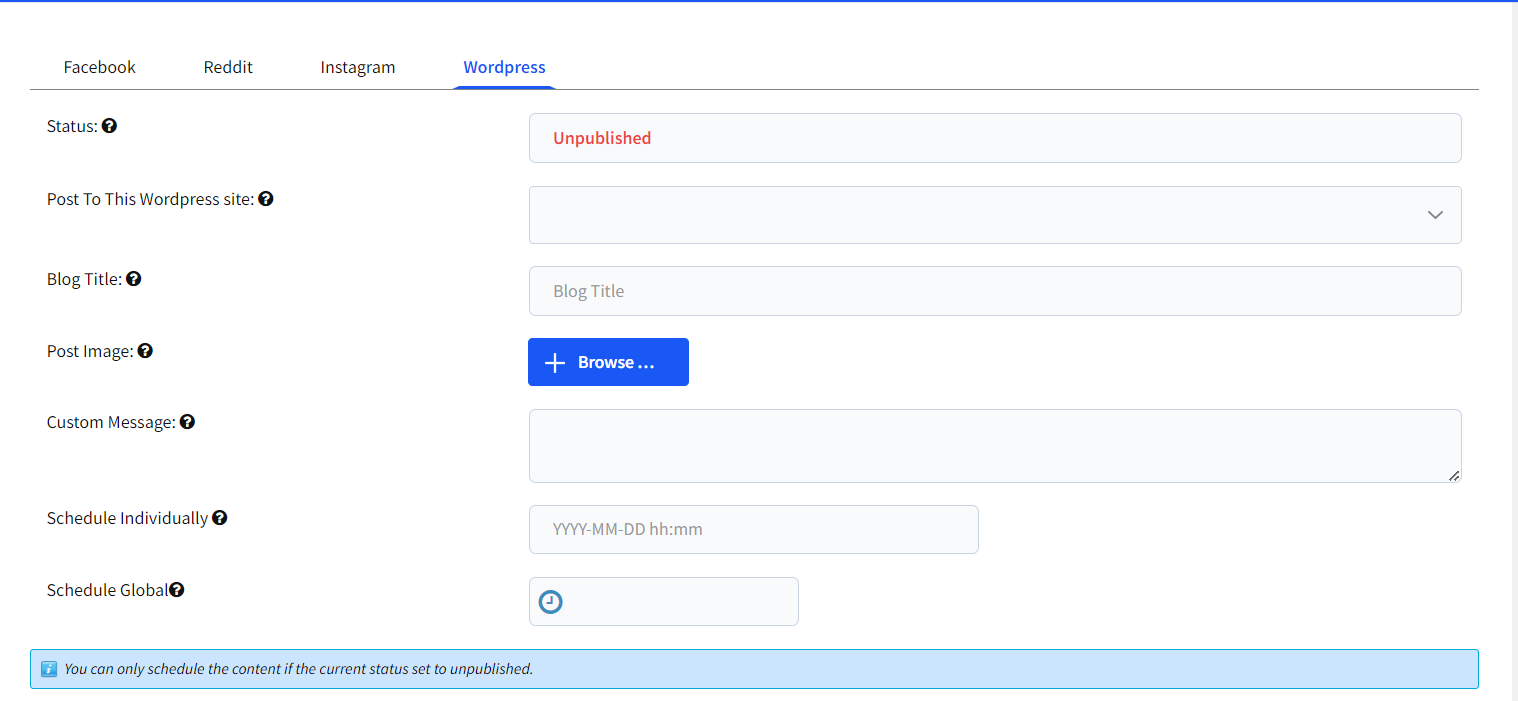
Status
Status of WordPress post like published/unpublished/scheduled.
Post To This WordPress site
Select the website to which you want to post.
Post Title
Here you can enter a custom title which will be used for the WordPress post.
Post Image
Here you can upload a default image which will be used for the WordPress post.
Custom Message
Here you can enter a custom message which will be used for the post.
Schedule Individually
Here you can set individual schedule time for posting on WordPress, this will over-write the global schedule if set.
Social Posting Logs #
A record of every Social Posting log is kept and available for Mingle Social Auto Poster PHP Script.

Social Posting Reports #
A record of every Social Posting Activity is kept and available for graphic representation from Social Auto Poster – PHP Script > Social Posting Logs.


