- I- Twilio Integration steps
- 1. Voice Call integration
- 2. Twiml App SID
- 3. Incoming Numbers Hooks
- 4. 2-way SMS integration
- II- Zoom Integration
- Zoom Api integration with lead manager
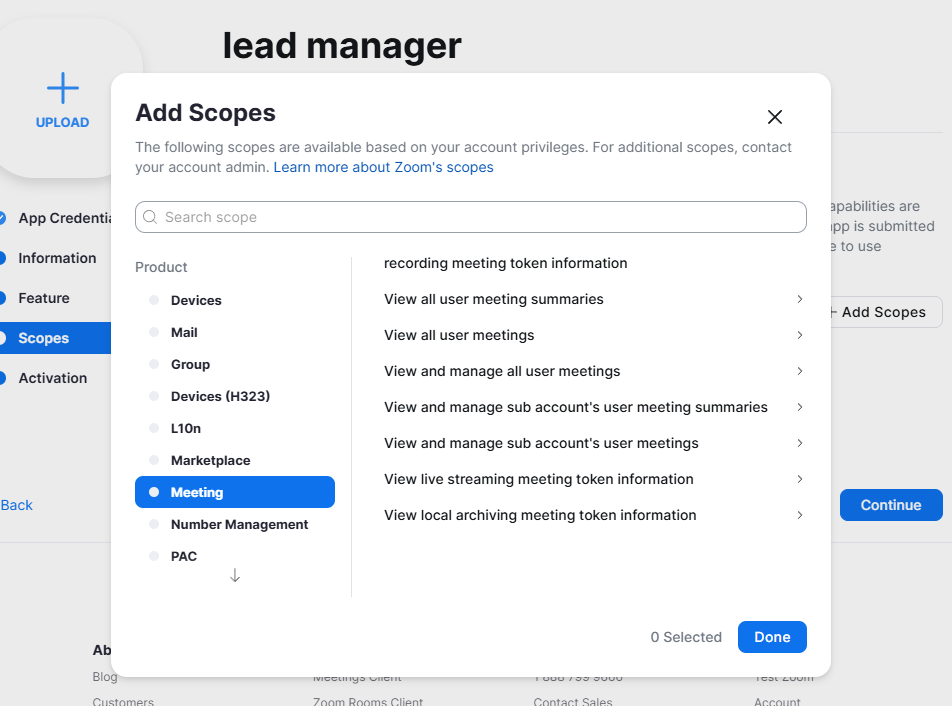
- Scope
- III- Mail Box
- IV- WhatsApp Integration
- V- Chatbot Integration
- Firebase APP Configuration:
- Click on create project
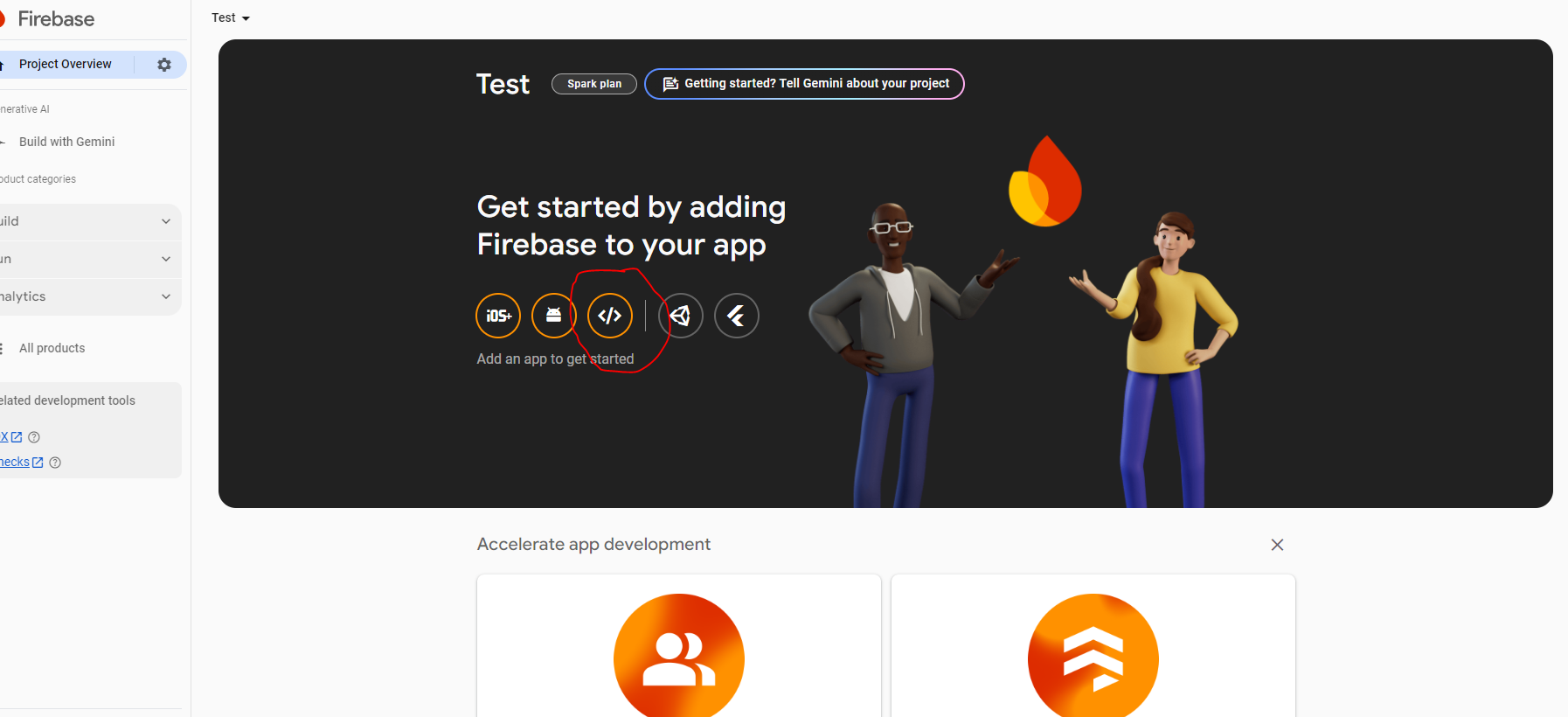
- click on the web icon for further setup
- Enter nickname of your app and if you want to add hosting then check the checkbox also and click on the register the app button
- Firebase Realtime Database Configuration:
- Click on create database
- select location for relatime database
- select locked mode otherwise select test mode if you are a developerand click on enable button
- Pull all firebase credentials here :
- VI- Staff Permission
- How to assign twilio number to staff.
I- Twilio Integration steps #
1. Voice Call integration #
Twilio Integration #
Note: Before make a call kindly set your Geographic Permissions click here:
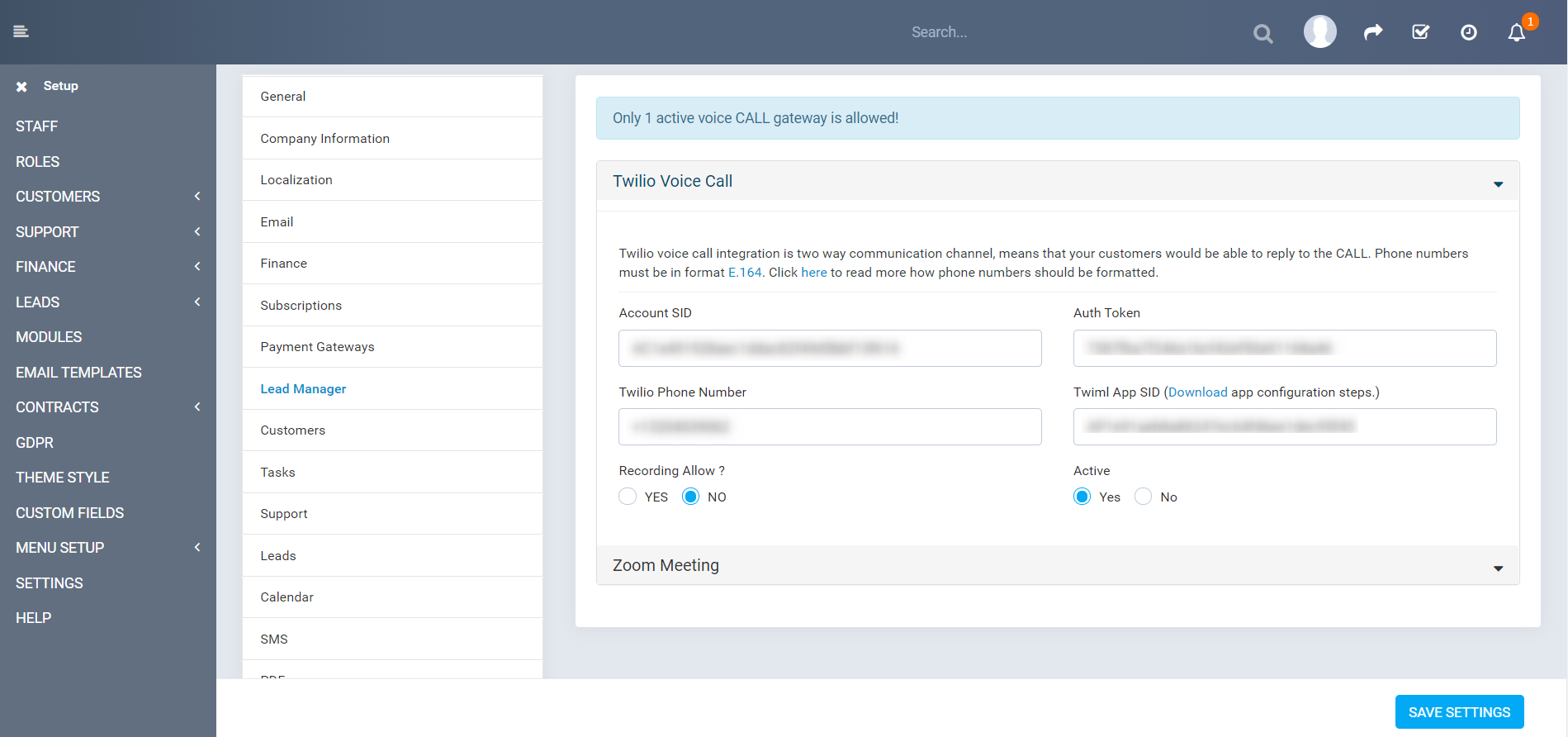
1- Open CRM and click Setup
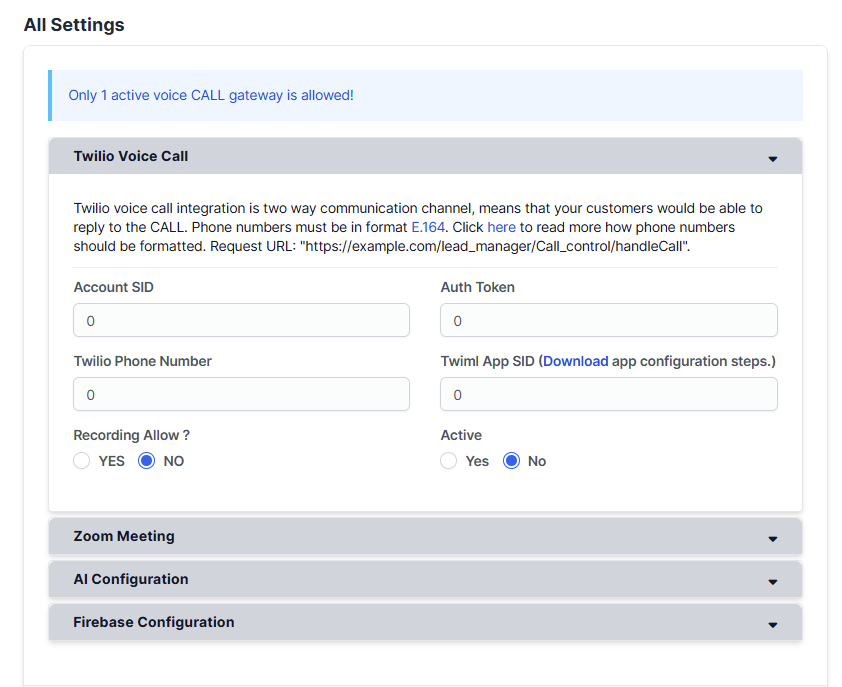
2- Setup–> Settings–> Communication–> All Settings–> Twilio Voice call
Enter below fields:
1-Account SID:
2-Auth Token:
3-API Key: You can get it from here
4-API Secret:
5-Twilio Phone Number: There is no space allowed in phone number. Correct formate is- +1123456789
6-Twiml App SID :
2nd Step
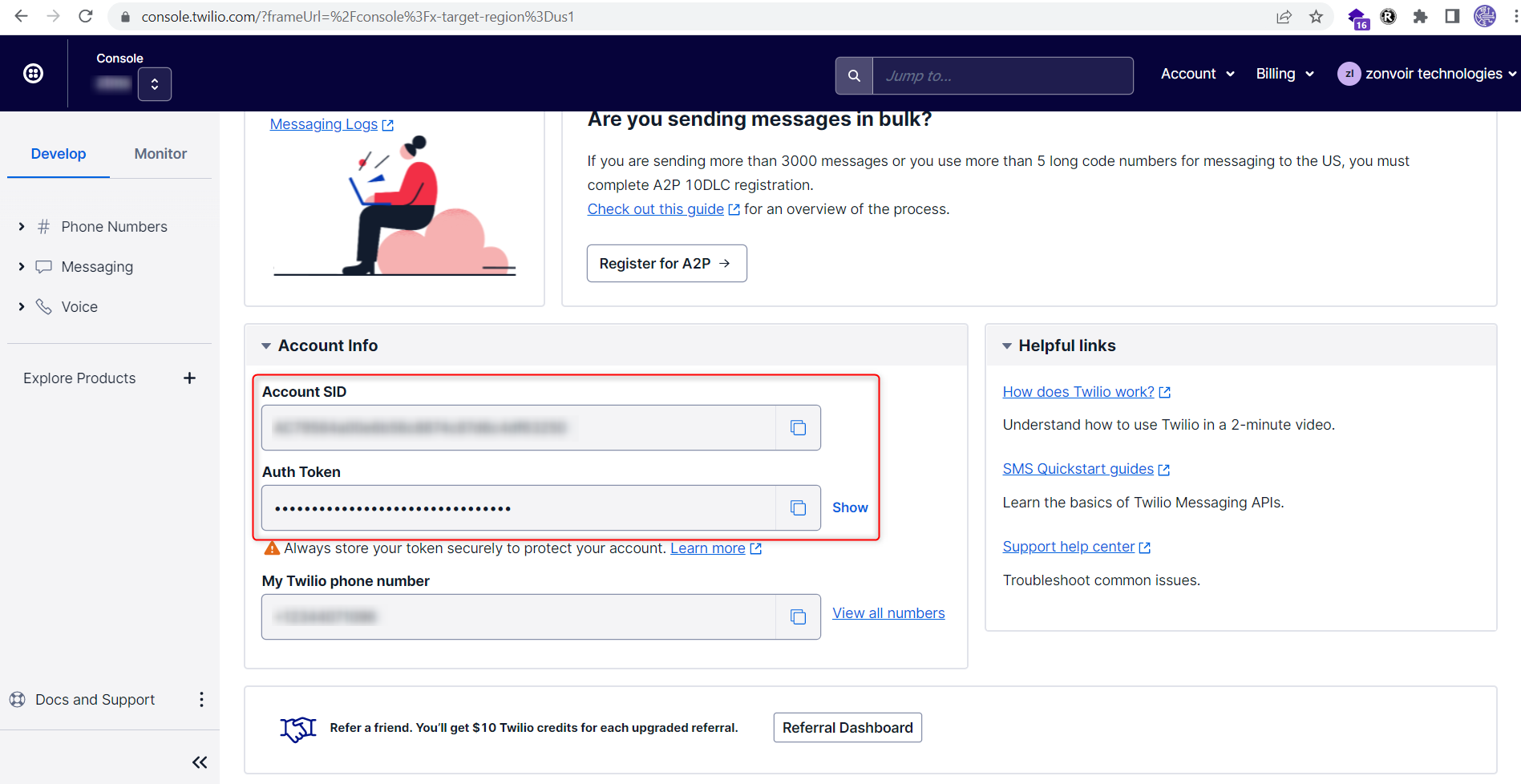
Find details in Twilio account #
Login the twilio account it will be redirect on dashboard page.
URL- https://www.twilio.com/console
1- Account SID
2- Auth Token
3rd Step
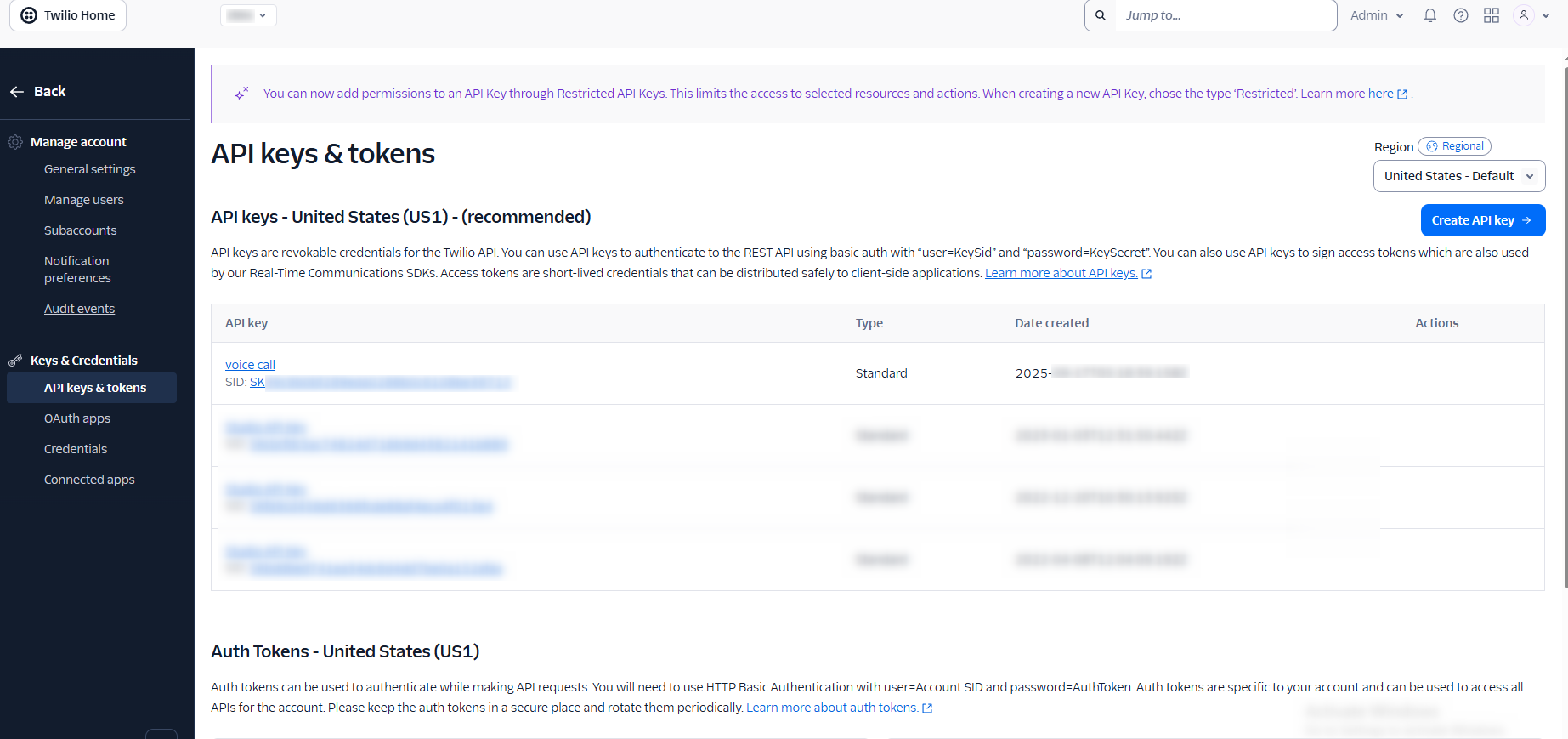
Find API keys and secrets #
URL- https://console.twilio.com/us1/account/keys-credentials/api-keys
Login the twilio account and click on Go to API Keys
4th Step
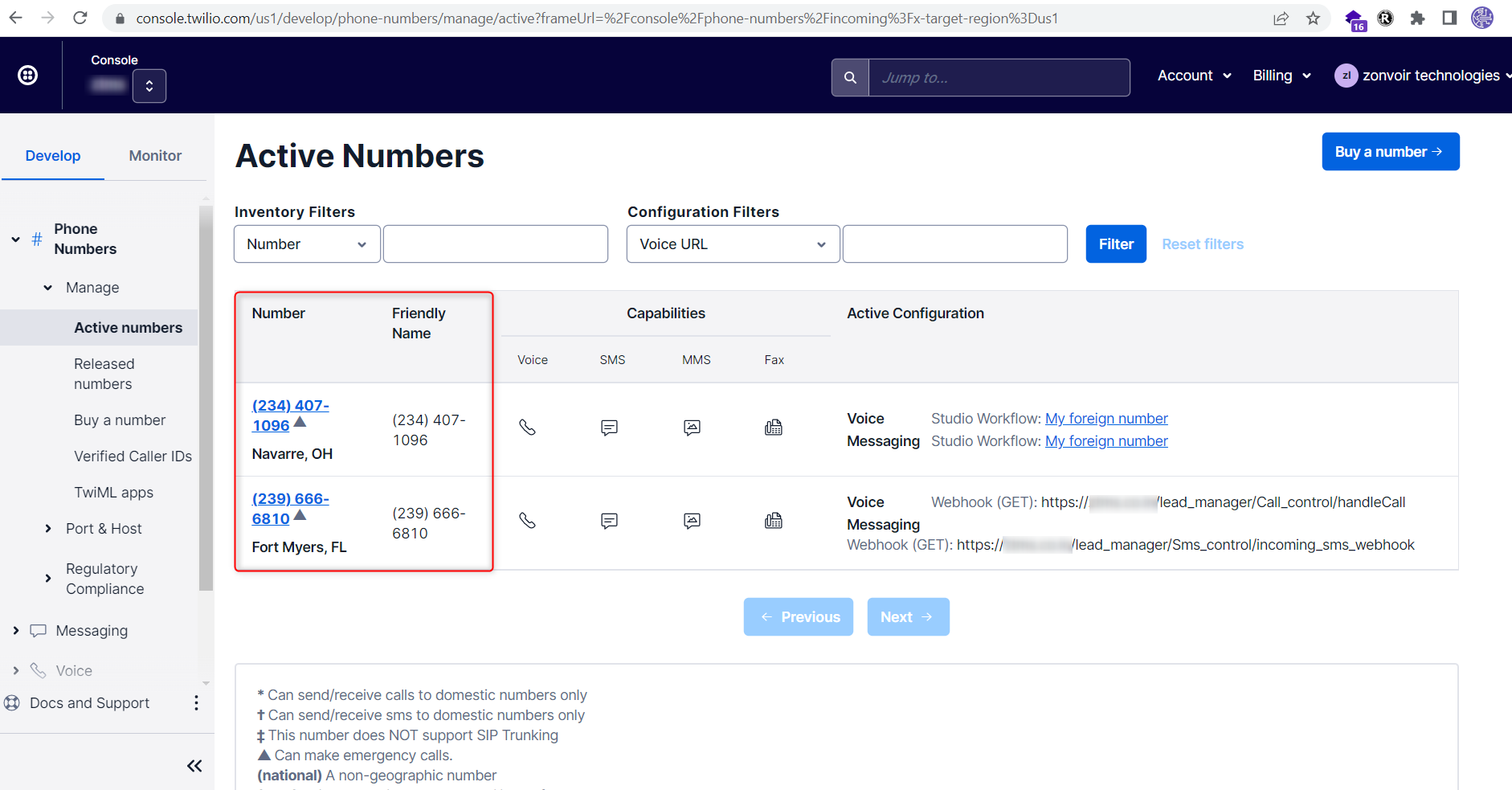
Find the Twilio Phone Number. #
URL- https://www.twilio.com/console/phone-numbers/incoming
Login the twilio account and click on Phone Numbers –> Manage –> Active Numbers
2. Twiml App SID #
Create New Twiml App SID. #
Login the twilio account and click on Left side top corner Develop Tab
Step 1- Phone Numbers–> Manage–> TwiMl Apps–> click on Create new TwiML App
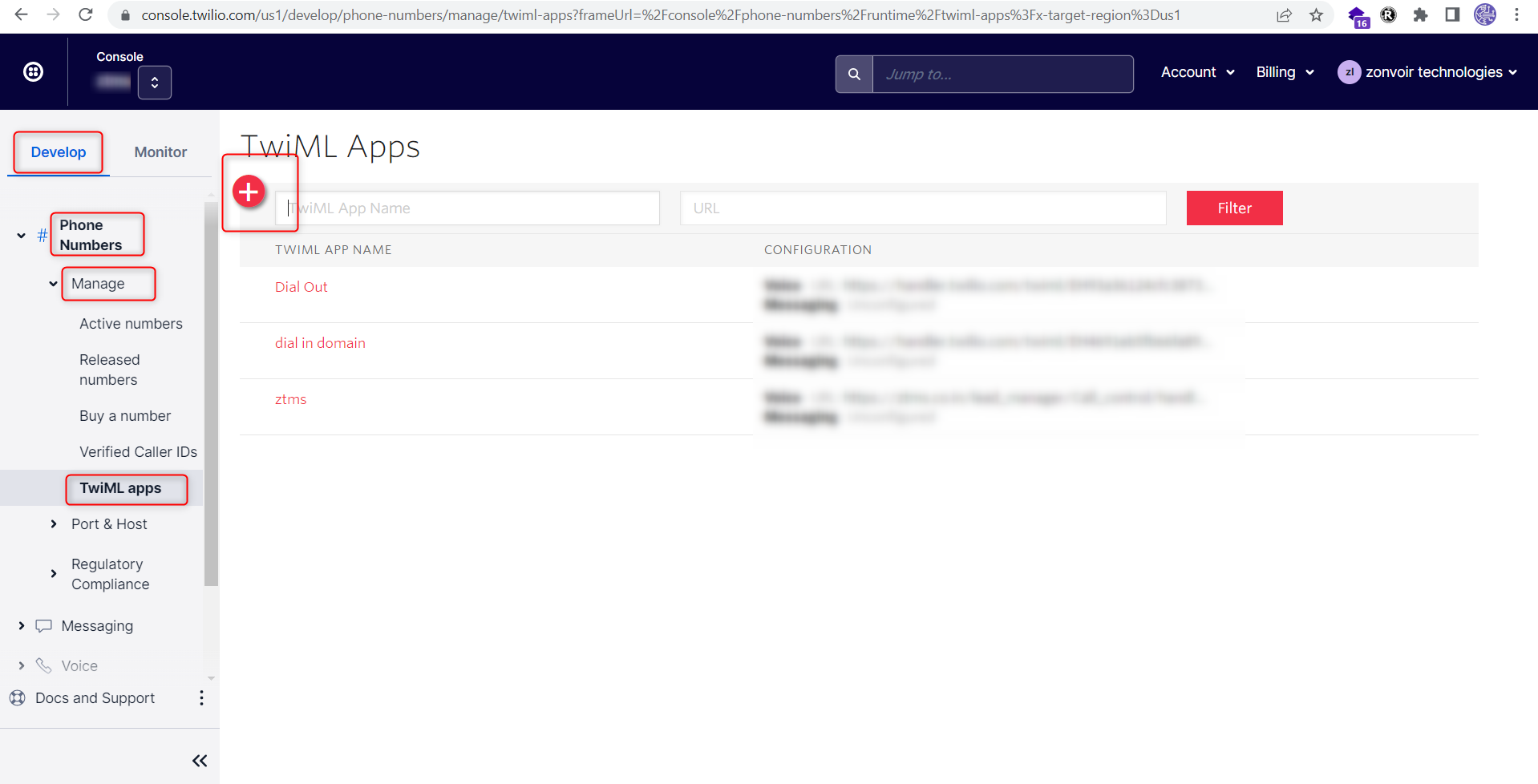
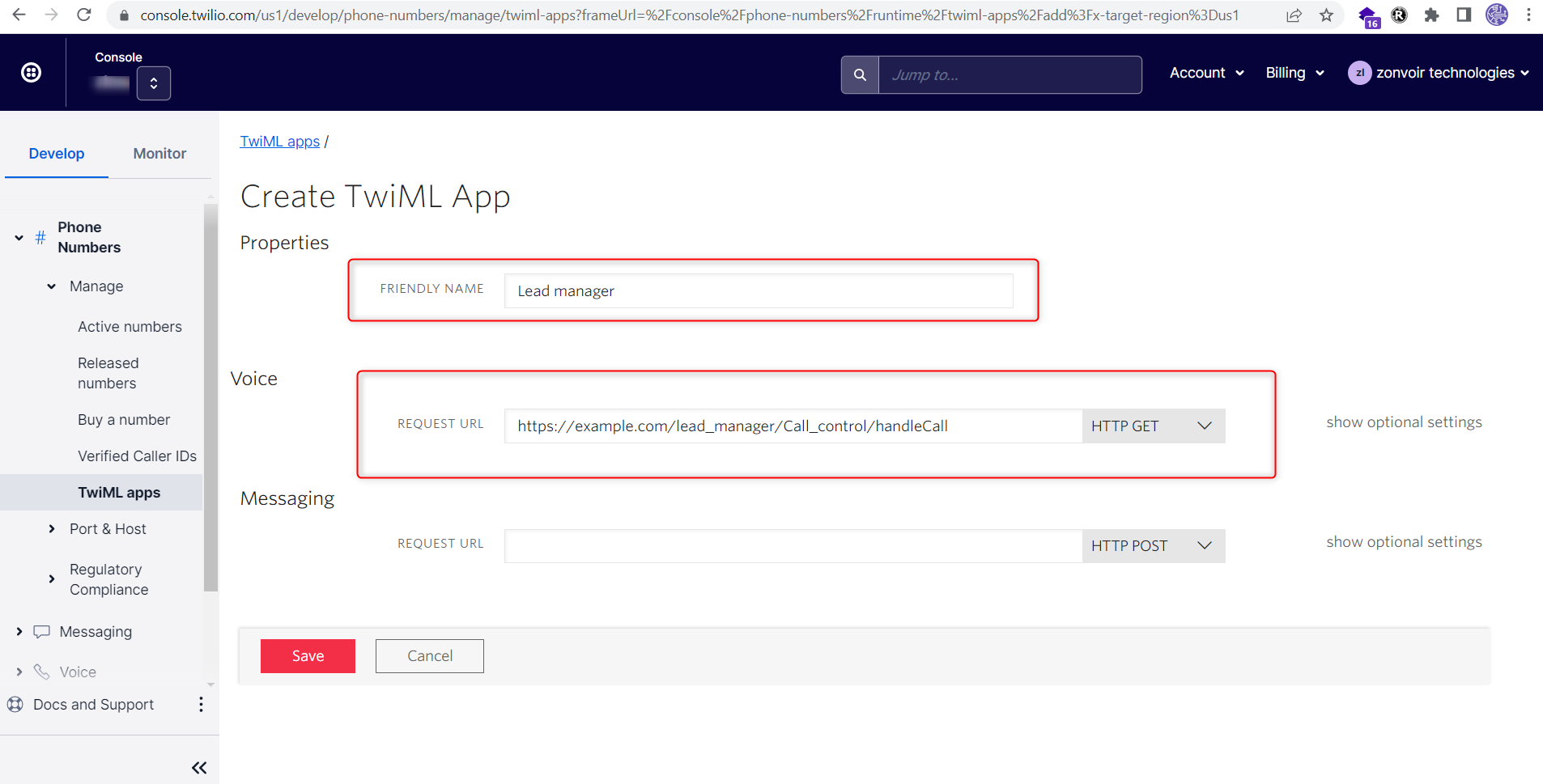
Step 2- 2.1 Friendly Name: Lead manager
Step 2- 2.2 Voice Configuration:
Step 2- 2.2.1 Request URL: https://example.com/lead_manager/Call_control/handleCall
Step 2- 2.2.2 Request Method: HTTP GET
2nd Step
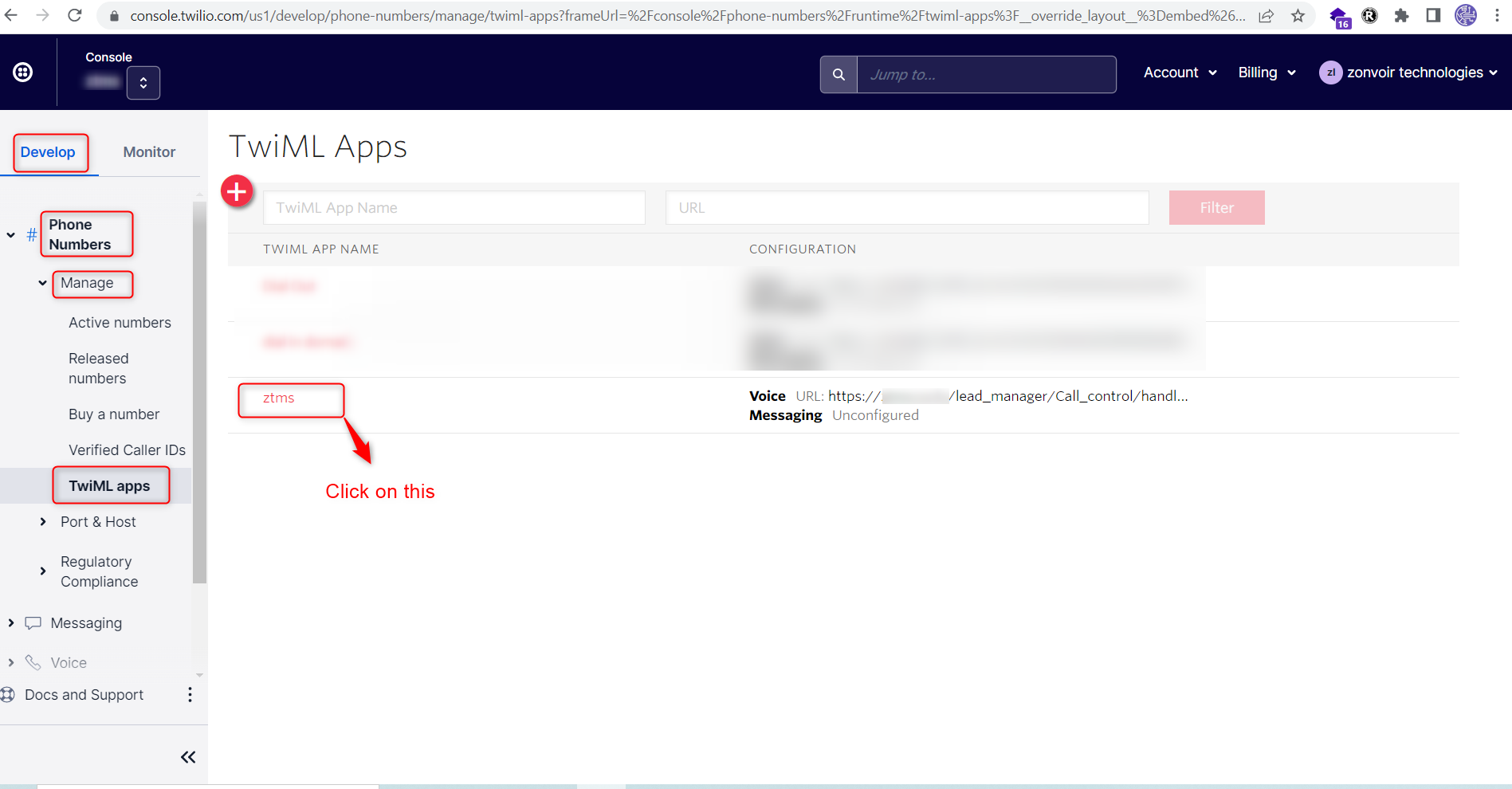
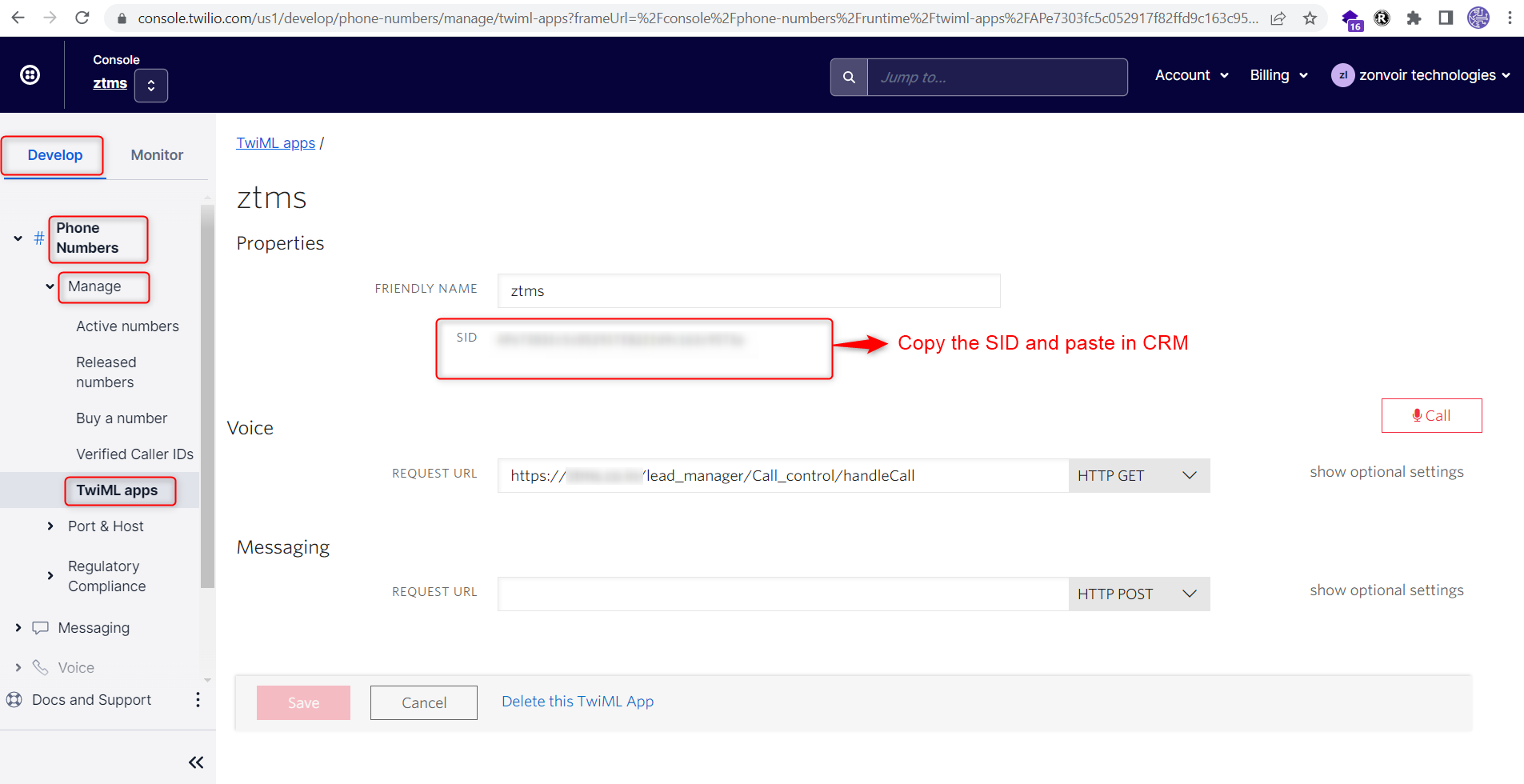
Find the Twiml App SID in twilio account. #
click on Left side top corner Develop Tab
Step 1- Phone Numbers–> Manage–> TwiMl Apps–> click on Create new TwiML App
3. Incoming Numbers Hooks #
Twilio Voice Numbers & SMS Webhooks Setup #
Step1: Click on Develop Tab –> Phone Numbers –> Manage–> Active numbers—> Add the webhook
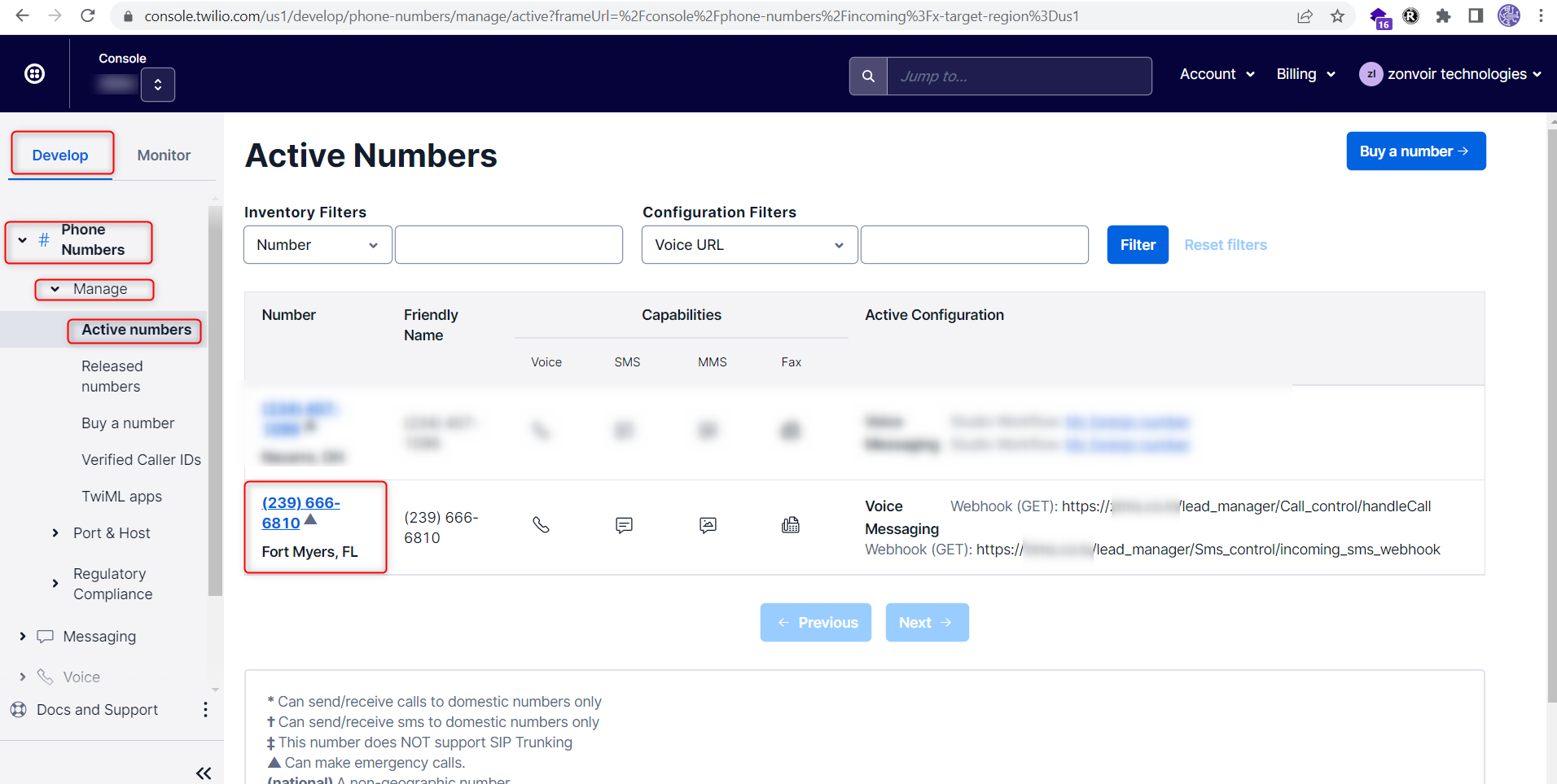
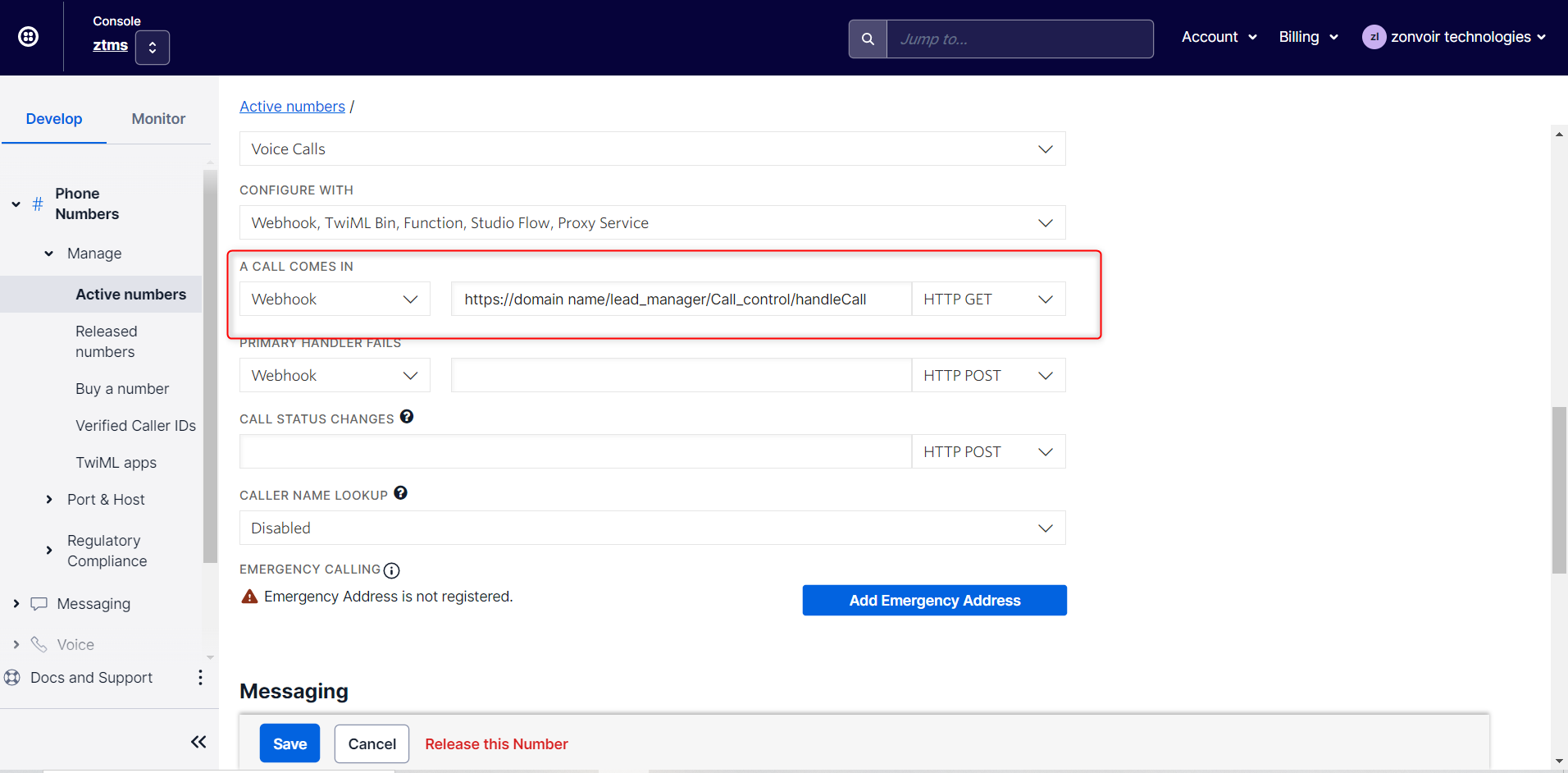
Step2: Click on Active Number–> Configure Tab
Add Webhook under “A CALL COMES IN” https://domain name/lead_manager/Call_control/handleCall
Request Method: HTTP GET
4. 2-way SMS integration #
Twilio Sms integration #
Note: Before make a call kindly set your Geographic Permissions click here:
Note: Pusher configuration is mandatory for Realtime sms notifications.
Setup >> Settings >> Pusher.com
Step1: Open then Perfex CRM click into Setup
Step2: Setup–> Settings–> Sms–> Twilio
2nd Step
Find details in Twilio account #
Login the twilio account on dashboard page account SID and Auth Token will be there.
URL- https://www.twilio.com/console
1- Account SID
2- Auth Token
3rd Step
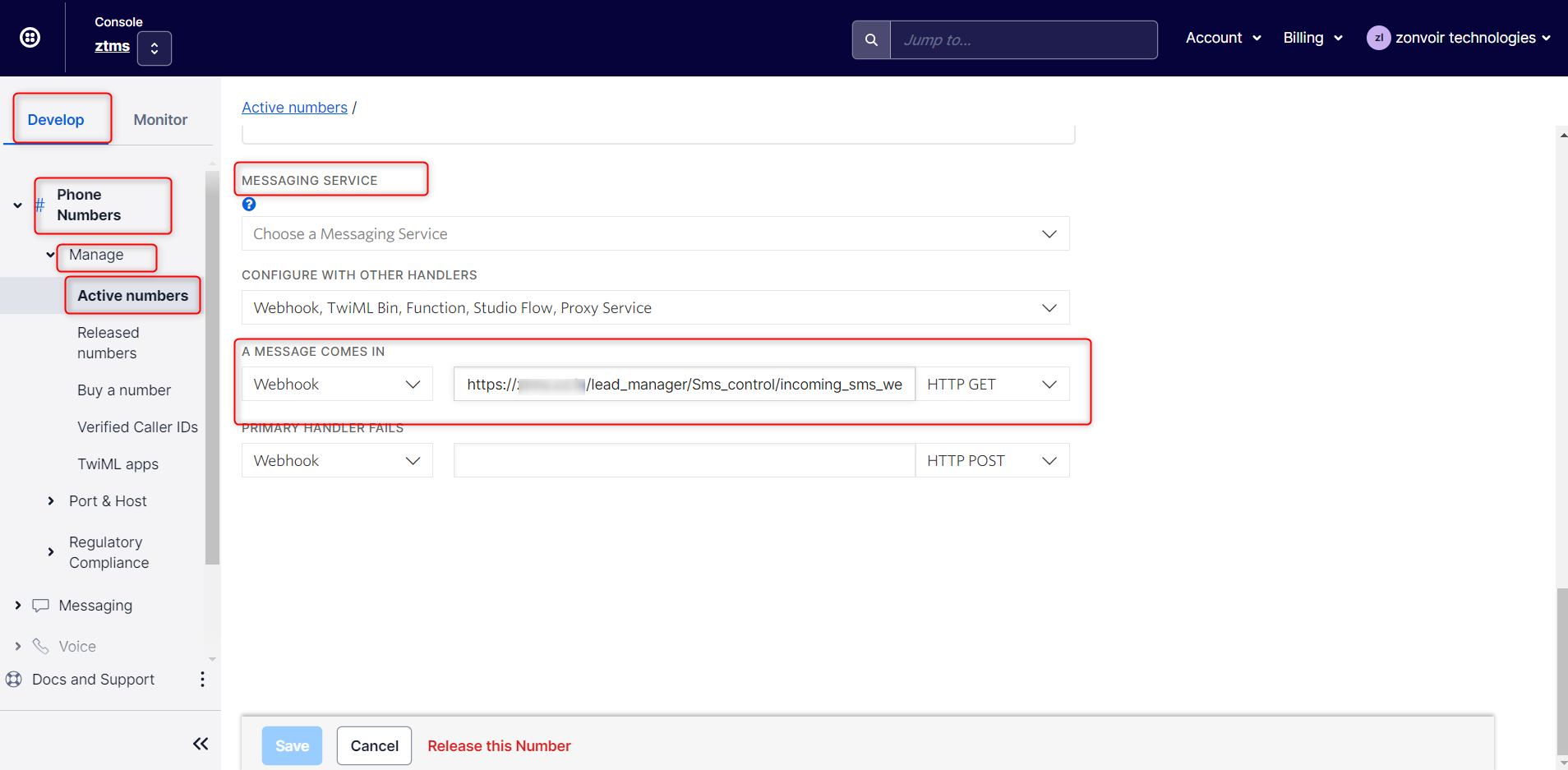
Step3: Click on Develop Tab –> Phone Numbers –> Manage–> Active Number—>
Click on it –> Configure–>Scroll down
Under MESSAGING SERVICE “A MESSAGE COMES IN” Select Webhook
URL: https://domain name/lead_manager/Sms_control/incoming_sms_webhook
Request Method:HTTP GET
II- Zoom Integration #
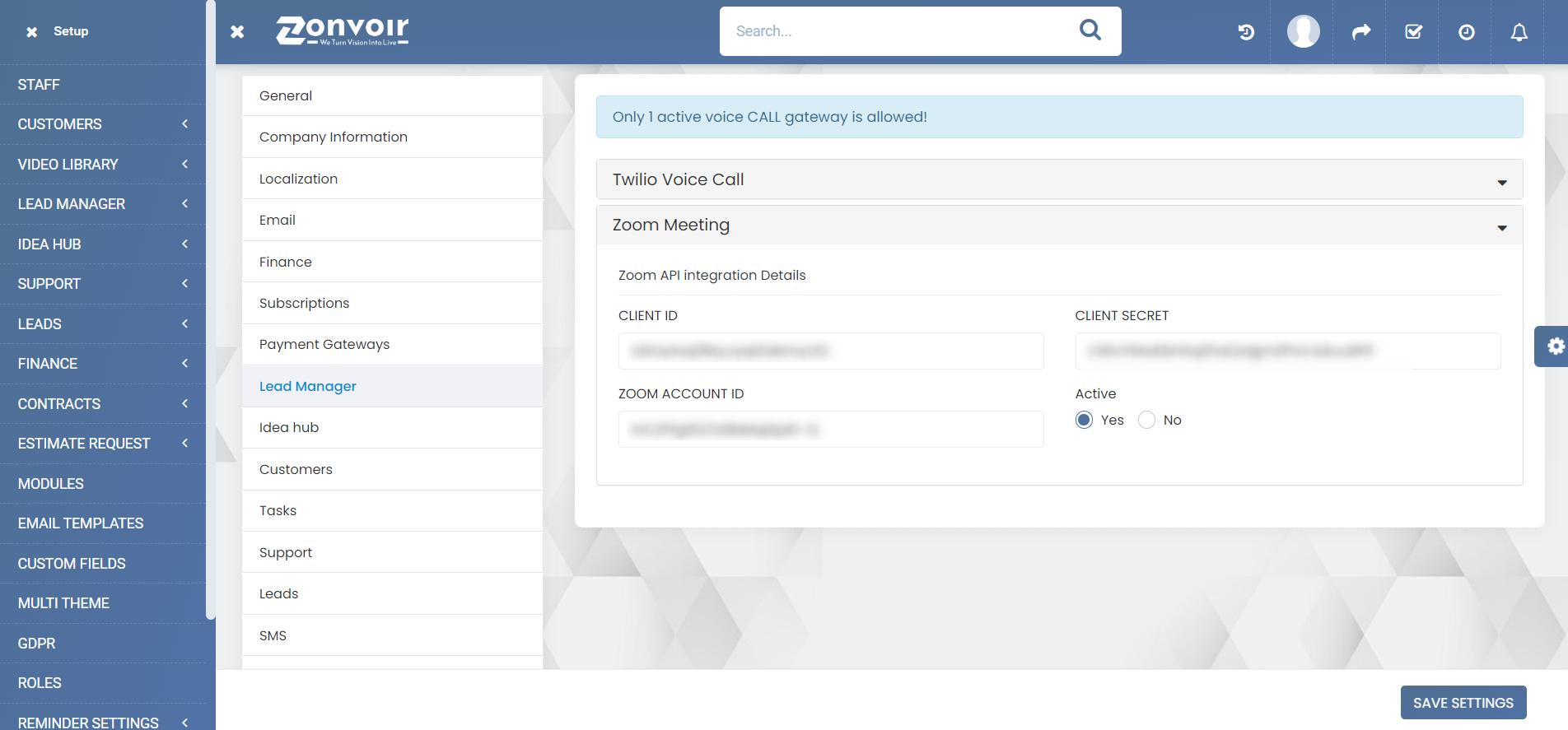
Zoom Api integration with lead manager #
Step1: Setup–> Settings–> Communication –> Zoom Meeting
2nd Step
Create the developer account on zoom #
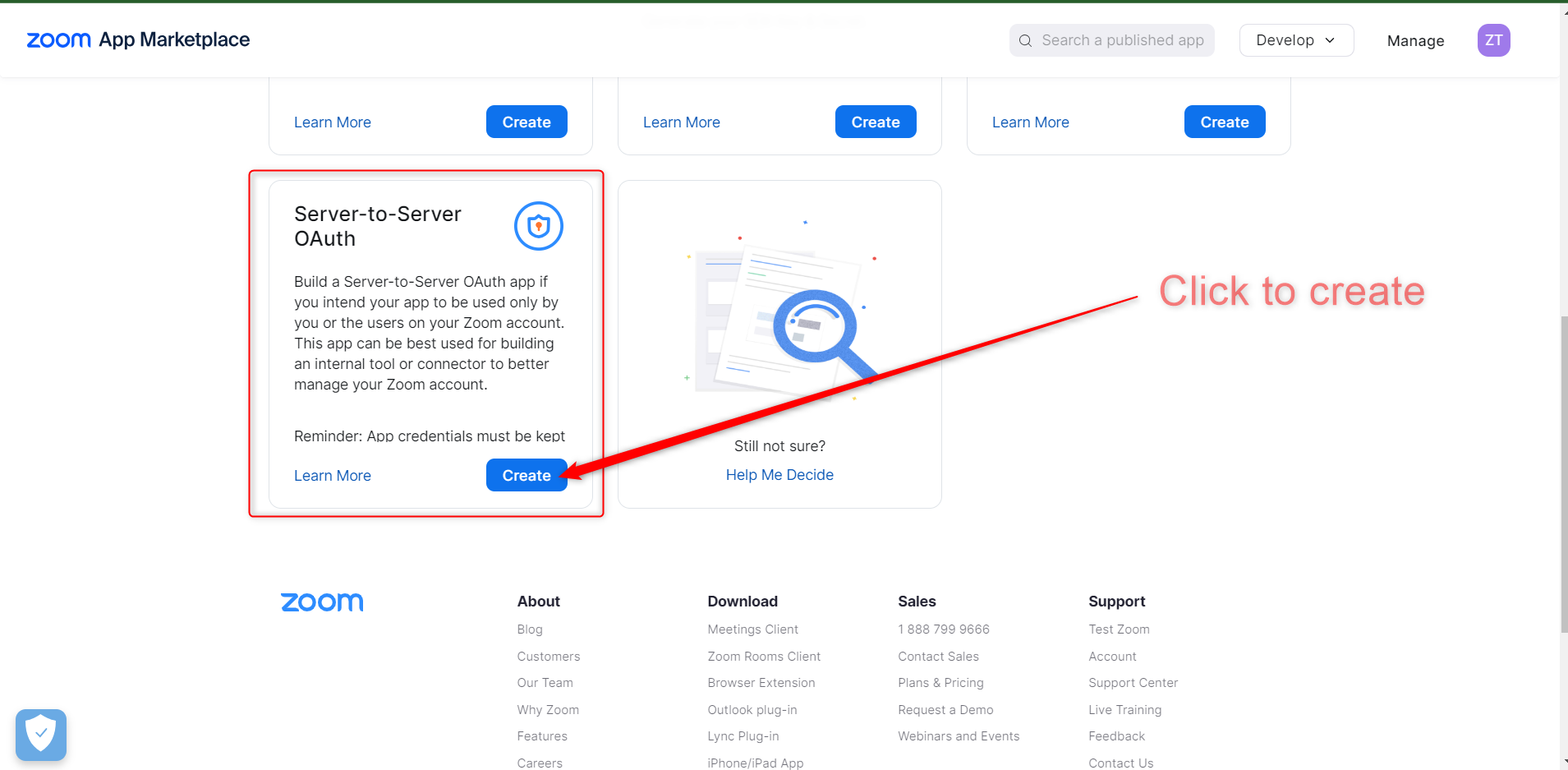
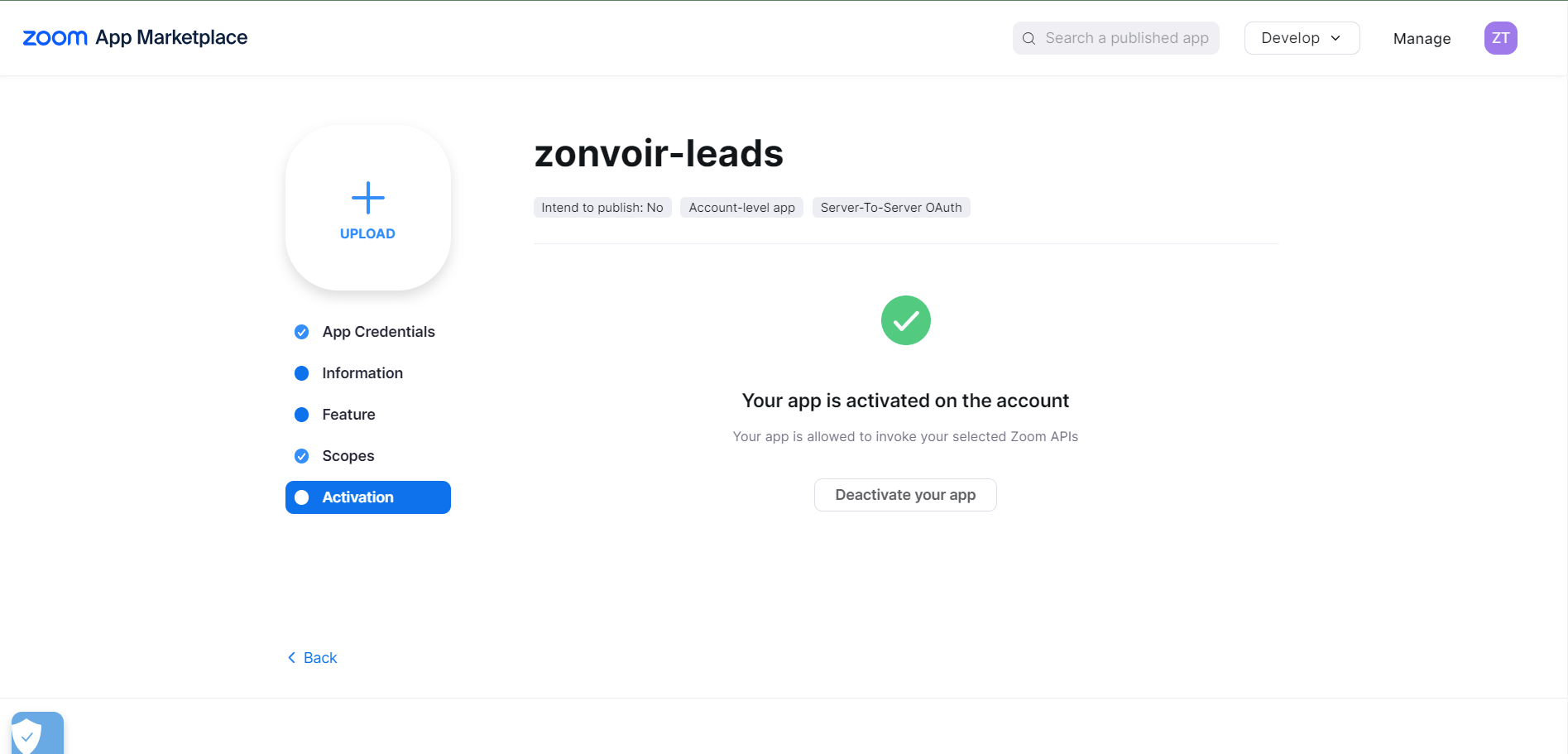
Step2: Choose your app type- Server to Server OAuth
https://marketplace.zoom.us/develop/apps/
3rd Step
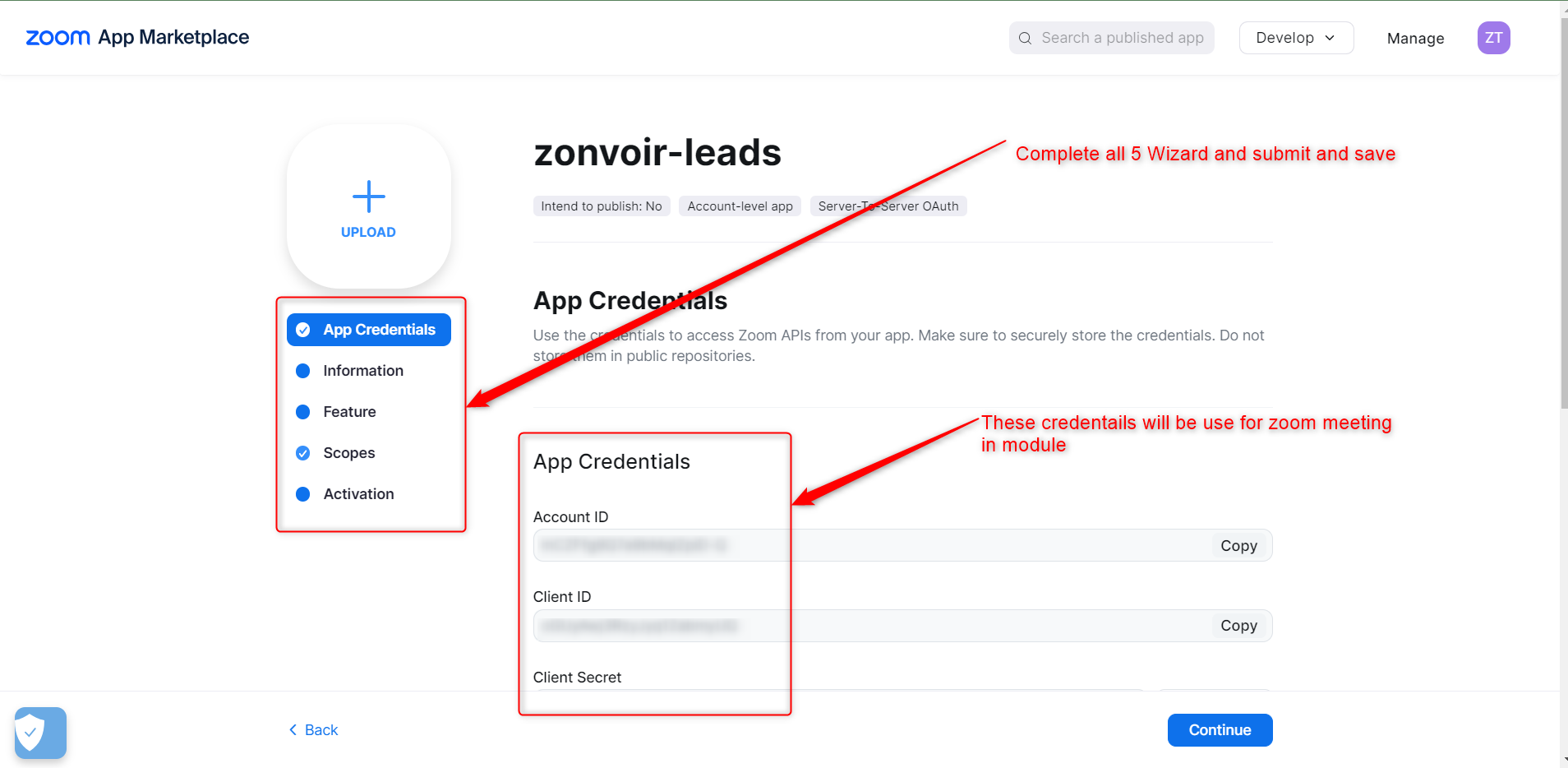
App Credentials #
4th Step
Scope #
5rd Step
III- Mail Box #
Mail Box Integration #
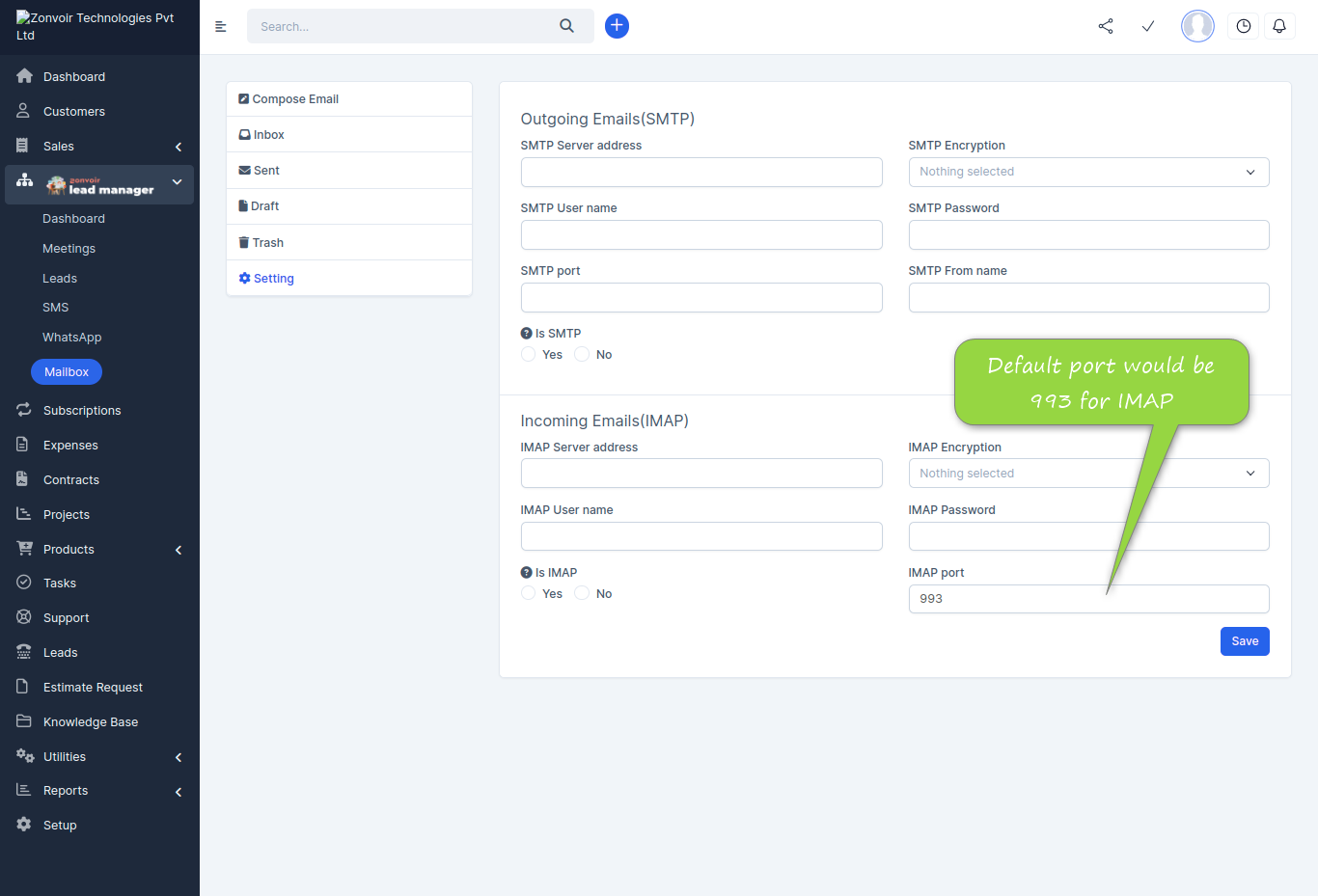
Mailbox is a module feature where you can add each staff email smtp and imap settings seperatly and allow them to access its own. Navigate to Mailbox >> setting
IV- WhatsApp Integration #
In Twilio #
Note: There is no support avilable without having facebook business approved account for whatsapp features.
Note: Pusher configuration is mandatory for Realtime sms notifications.
Setup >> Settings >> Pusher.com
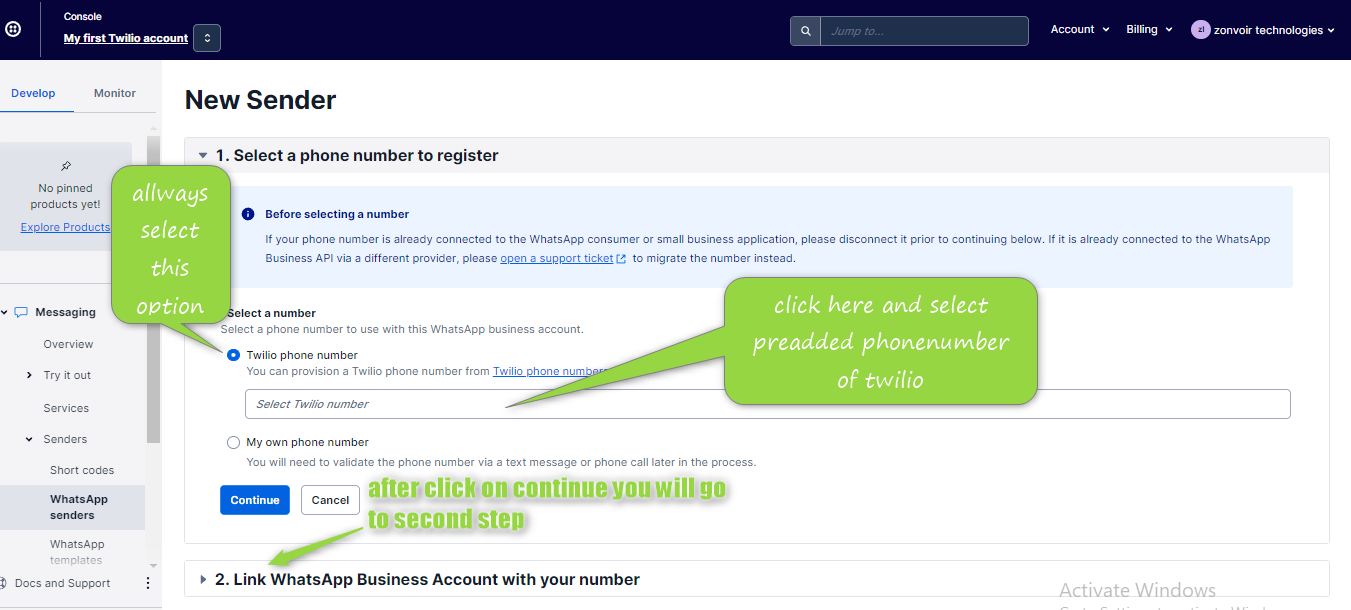
Navigate to the Messaging > Senders > WhatsApp Senders section in the Twilio Console. Click the “Submit a WhatsApp Sender” button to create a new sender profile. If you already have a WhatsApp sender, the button will say “New WhatsApp Sender”. Here you can create a new sender with your verified facebook business id.
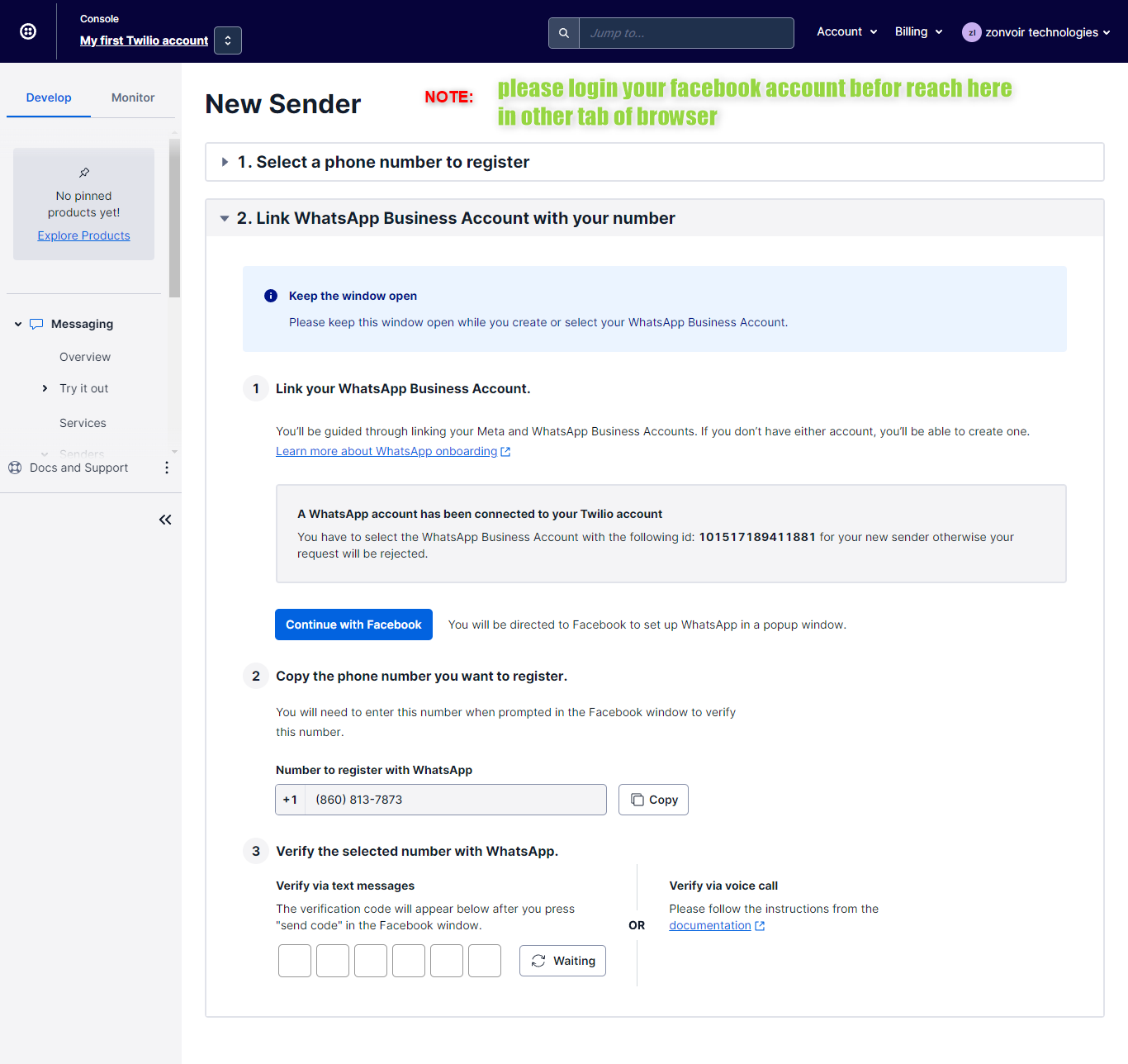
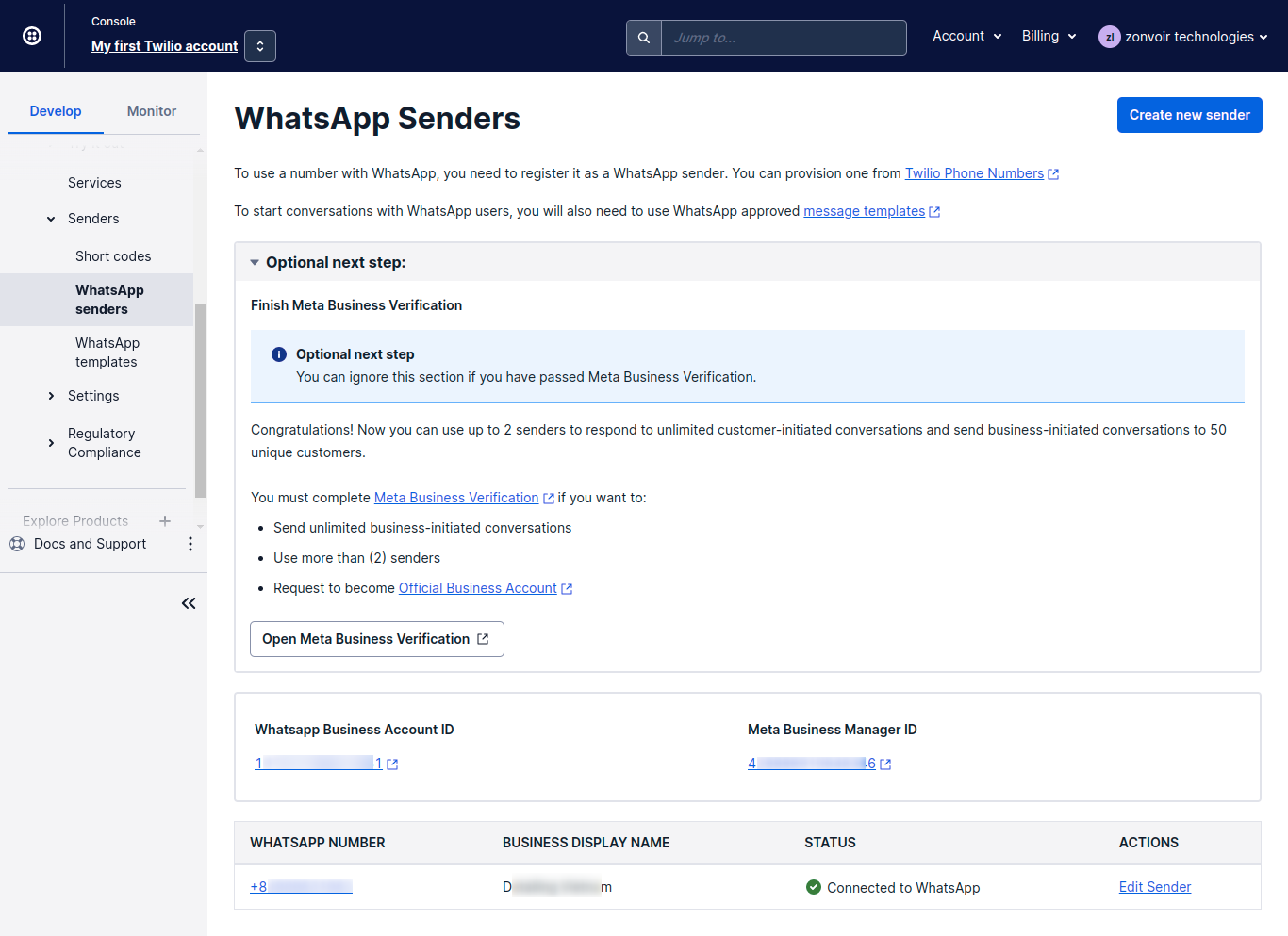
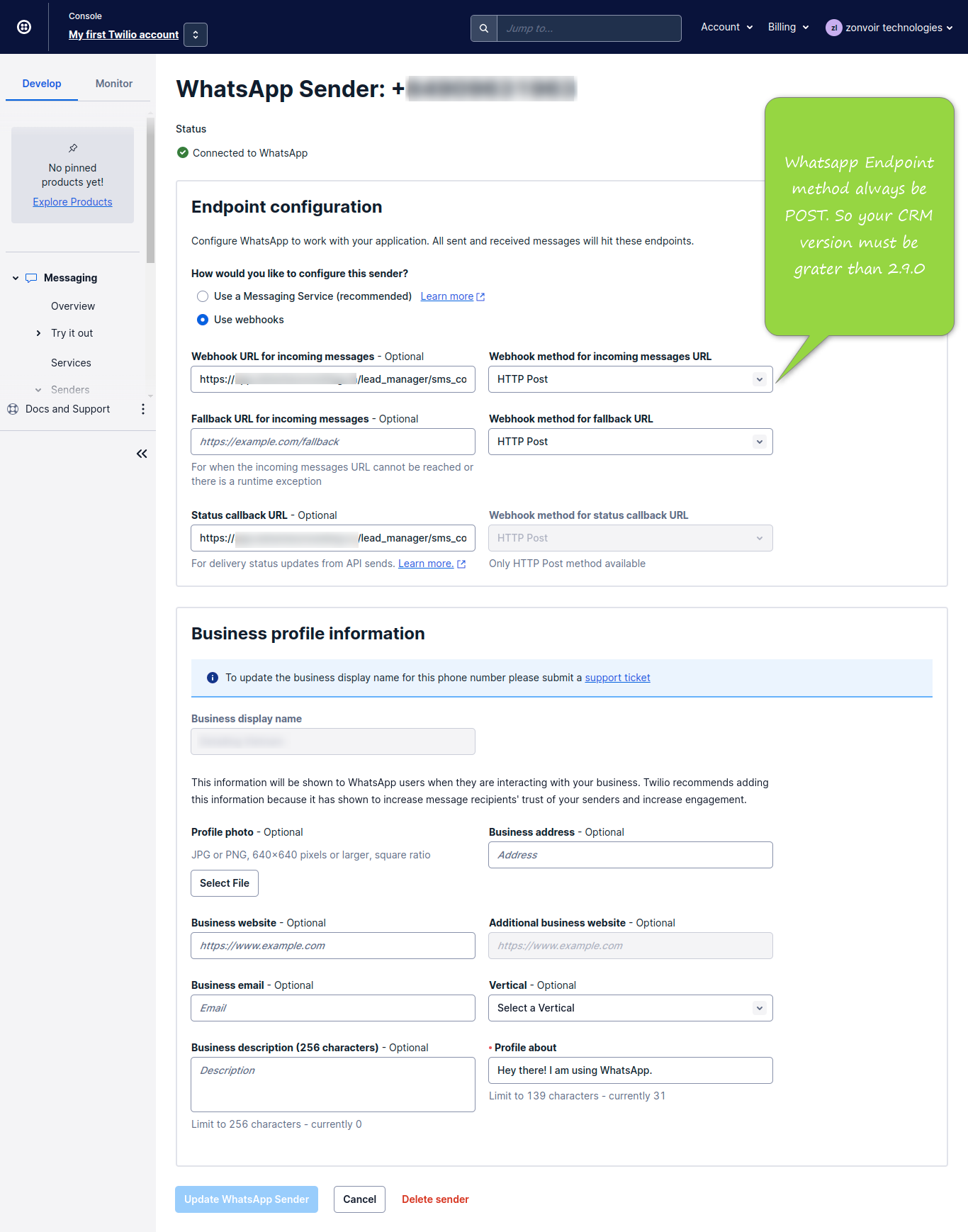
Configure the above sender endpoint on just click on sender number. Note: all webhhooks would be set on post because whatsapp endpoint only support post.
Webhook URL for Incoming Messages:
https://domainname/lead_manager/Sms_control/incoming_whatsapp_webhook #
Status Callback URL:
https://domainname/lead_manager/Sms_control/incoming_whatsapp_status #
2nd Step
Whatsapp Templates #
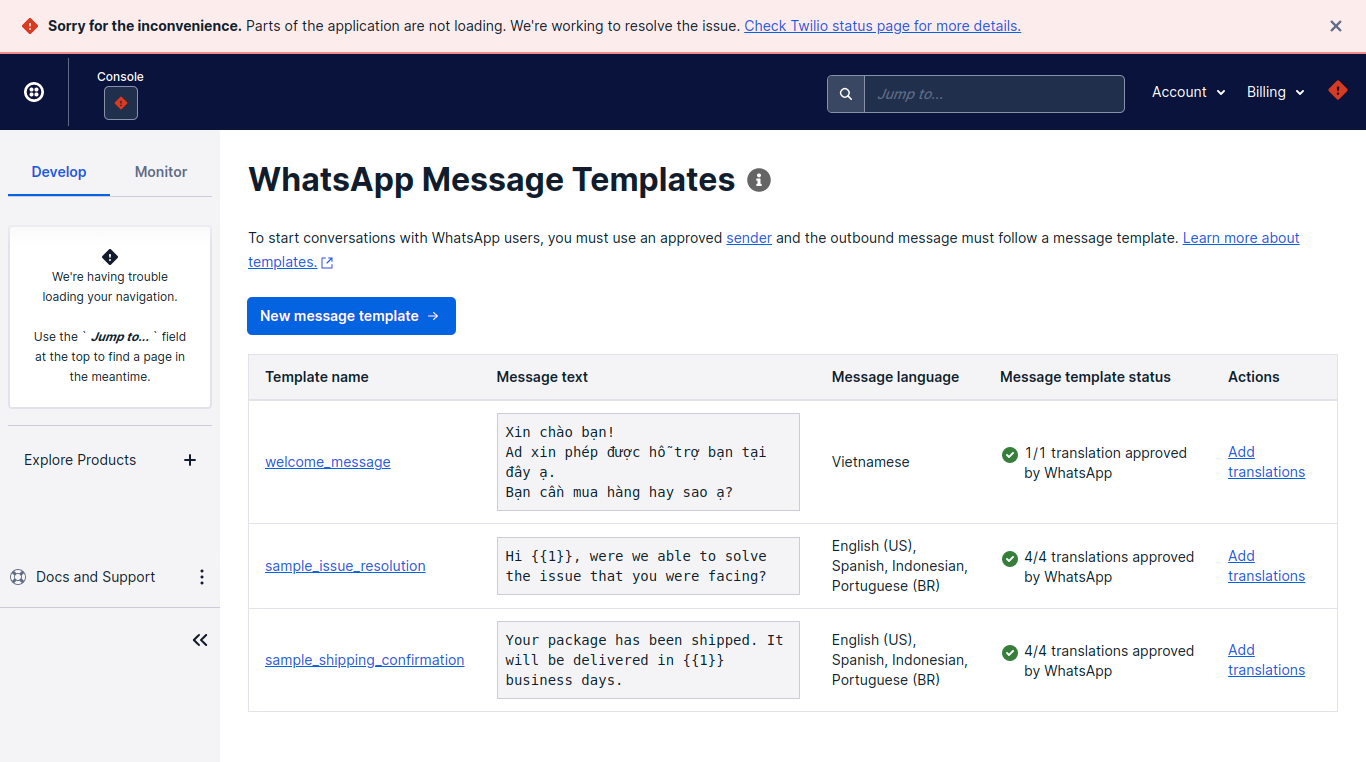
Access the WhatsApp Message Templates page in Console by navigating to Messaging -> Senders -> WhatsApp Templates. Click the Submit a Message Template button. If you are not creating a template for the first time, you will see the New message template button. Click it to create additional templates. Read more about it click here.
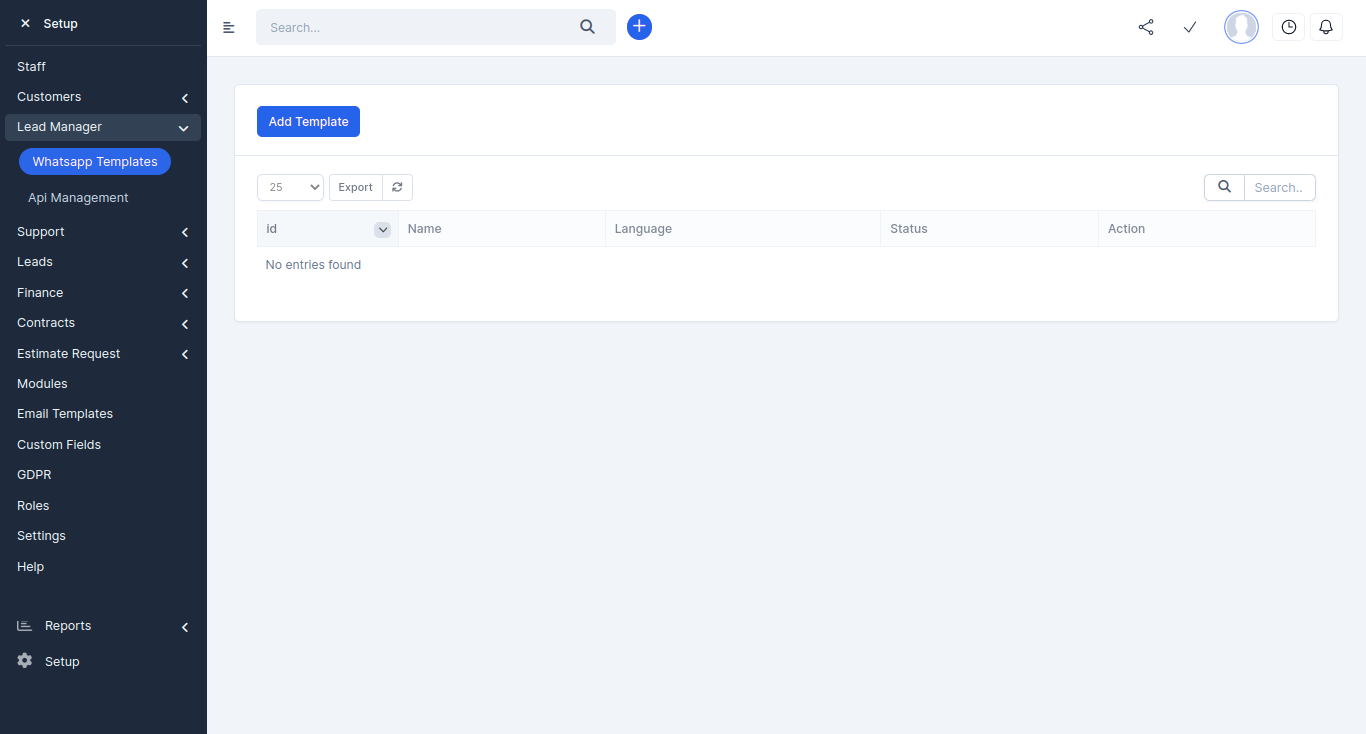
All these above template content should be add here to. Navigate to CRM Setup >> Lead manager >> whatsapp template >> click on add template
3rd Step
IN CRM #
Integration of Communication module with whatsapp is too easy if you have a verified bussiness account on Facebook and approved by whatsapp.
Staff contact (number provided by twilio) should be whatsapp enabled. To nevigate this action go to you staff profile and update `Is twilio number whatsapp enable` to “yes”
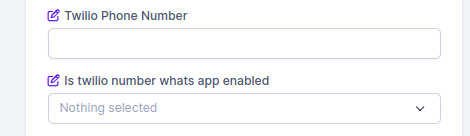
Client/Lead contact (phone number) should be whatsapp enabled. To nevigate this action go to you Client/Lead profile and update `is twilio number whatsapp enable` to “yes”.
V- Chatbot Integration #
Firebase APP Configuration: #
Login https://console.firebase.google.com/
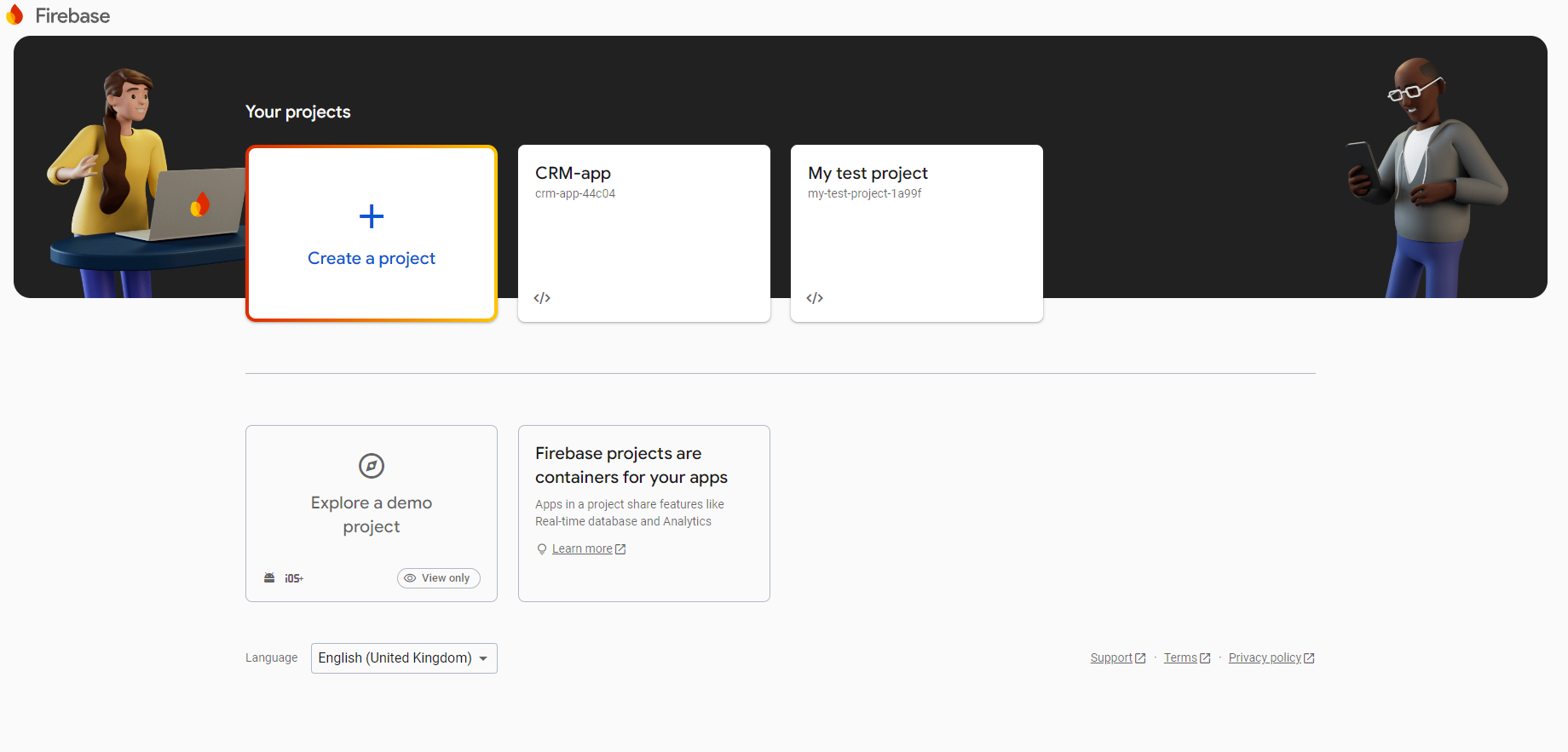
2nd Step
Click on create project #

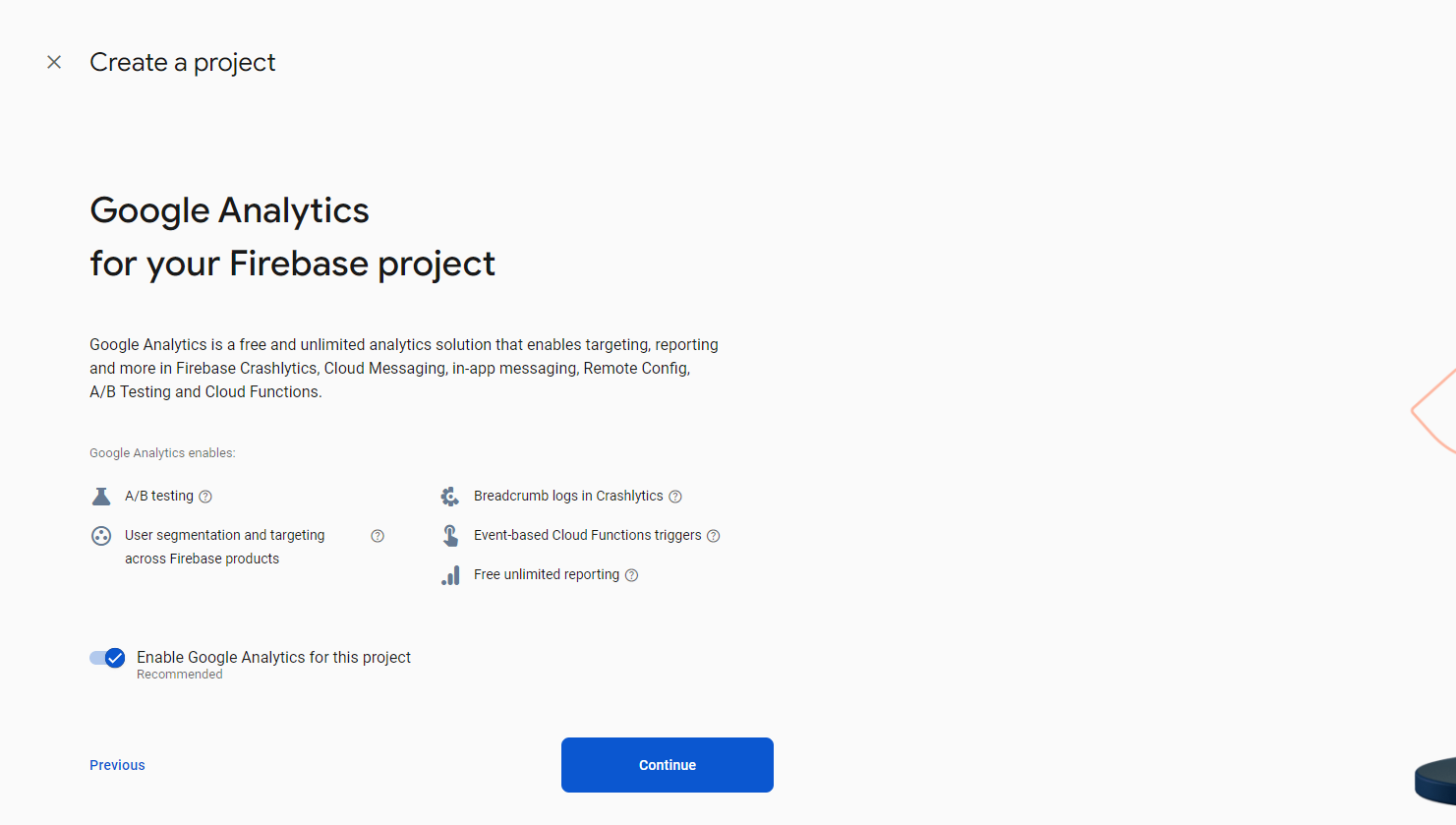
If you want to enable analytics then check it otherwise proceed without check #
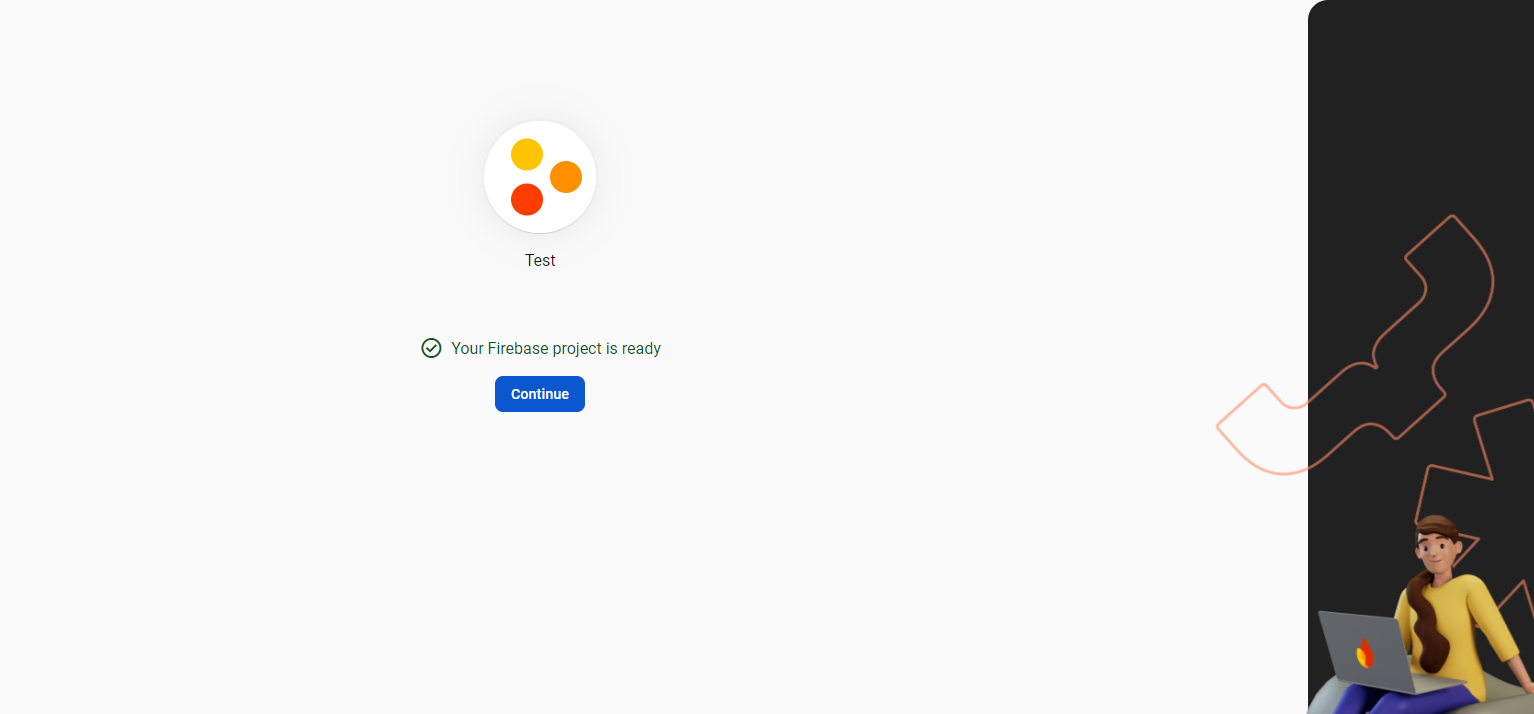
this will take few seconds to create project #
3rd Step
Now your project is ready in firebase click to continue and
you will redirect on the below page #
4th Step
click on the web icon for further setup #
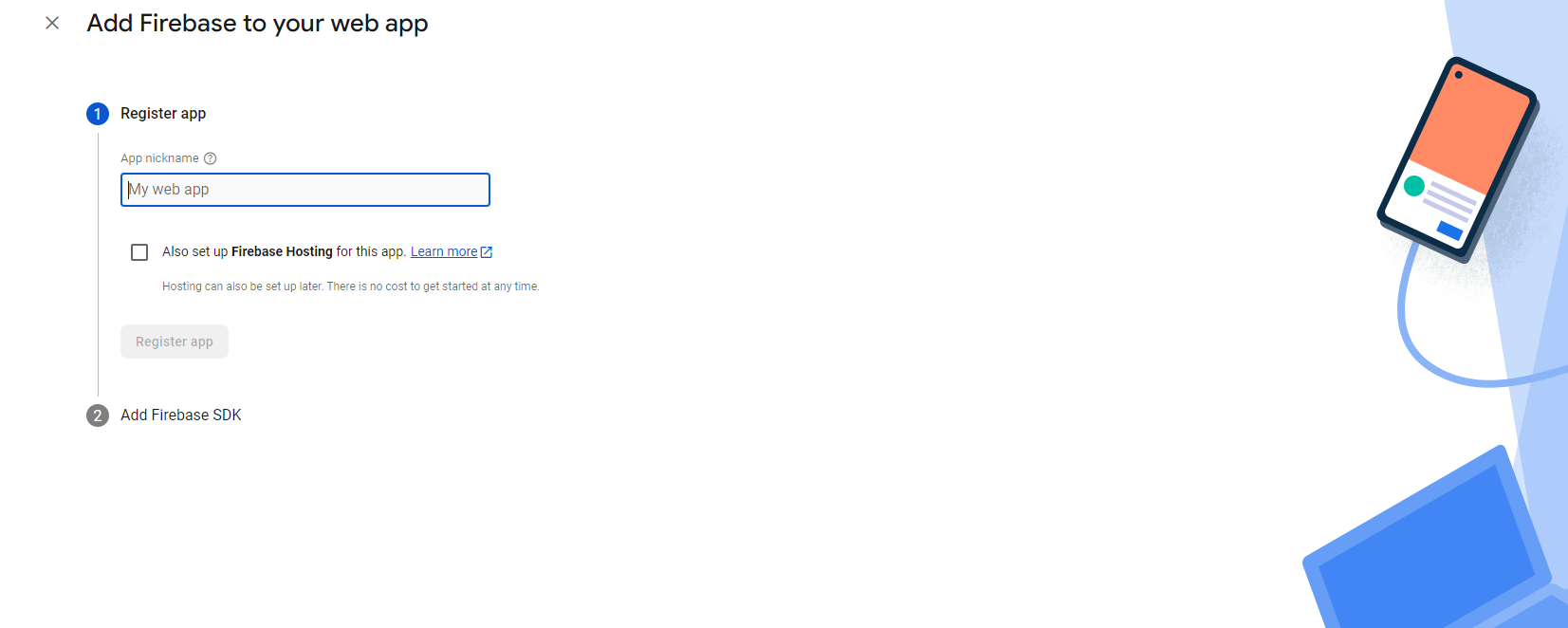
Enter nickname of your app and if you want to add hosting then check the checkbox also and click on the register the app button #
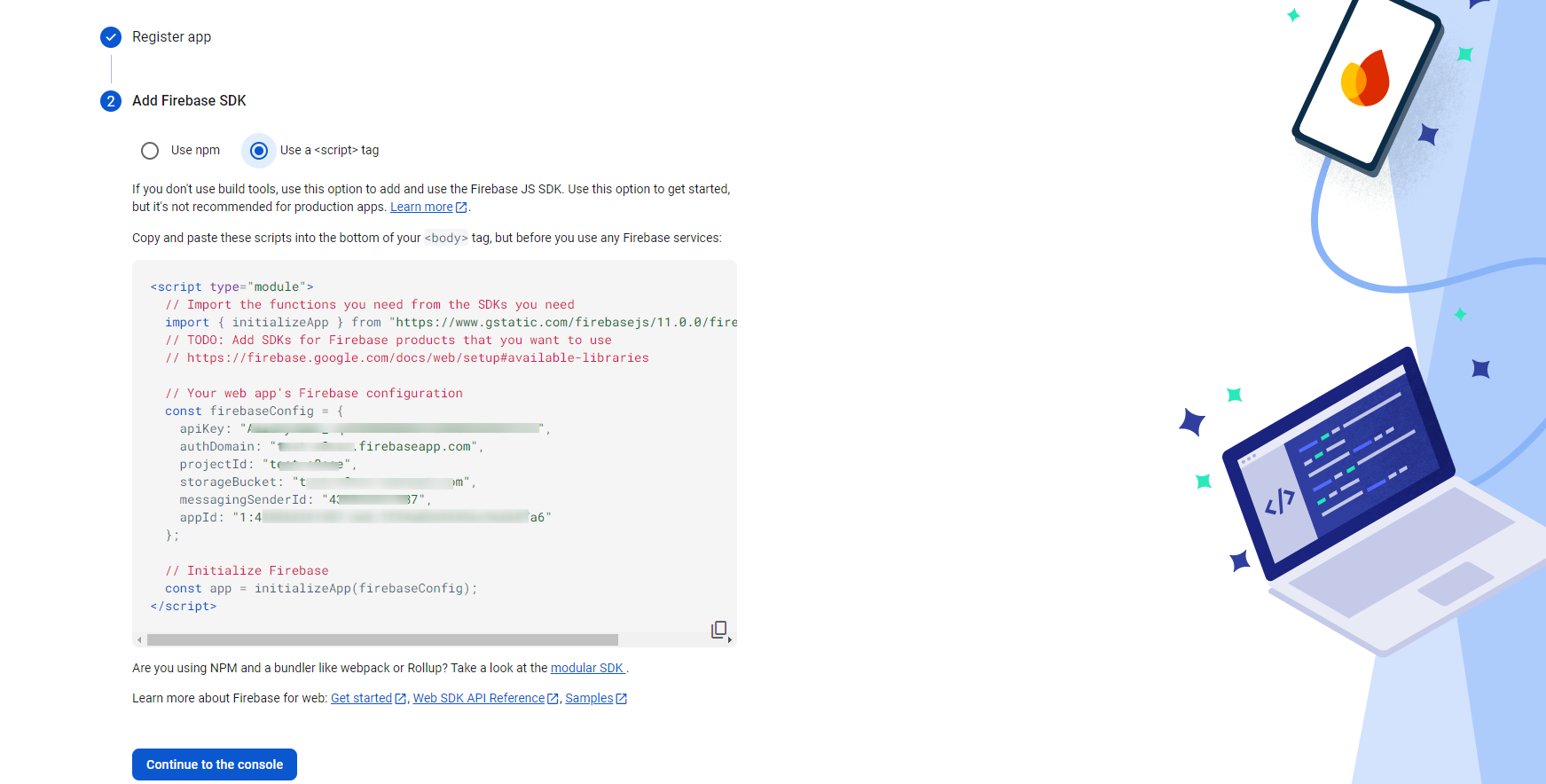
after that you will get Add firebase SDK section where you will get the SDK code of firebase and credentials of the app of firebase when you select radio button use a script tag. #
5th Step
Firebase Realtime Database Configuration: #
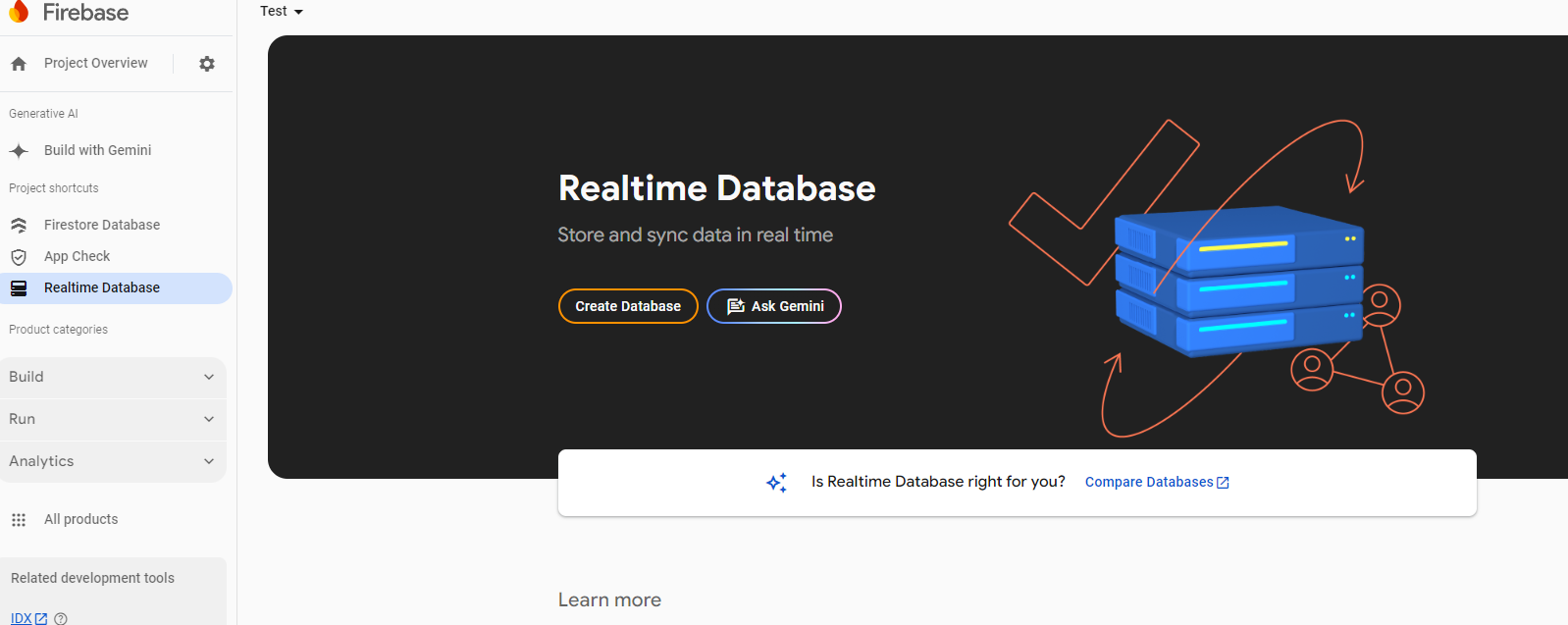
Why Database: We require database because AI chat bot doesn’t use MYSQL database for real-time chat, it store all the conversation history on the Cloud Firestore.
6th Step
Click on create database #
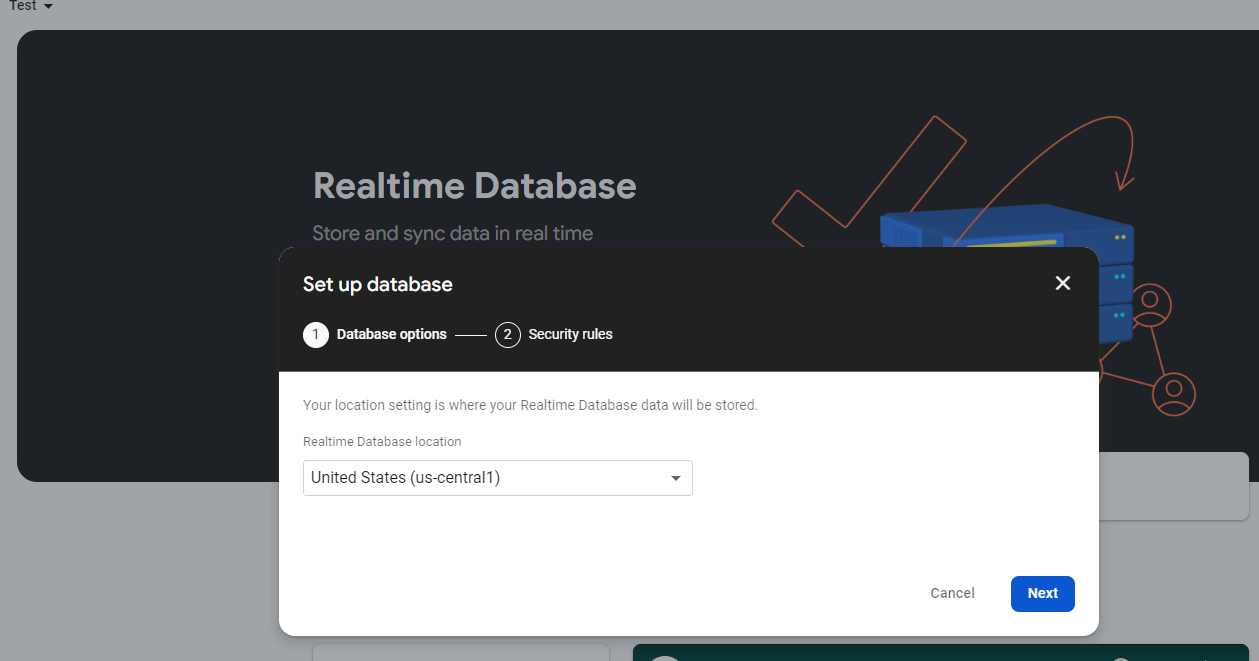
7th Step
select location for relatime database #
8th Step
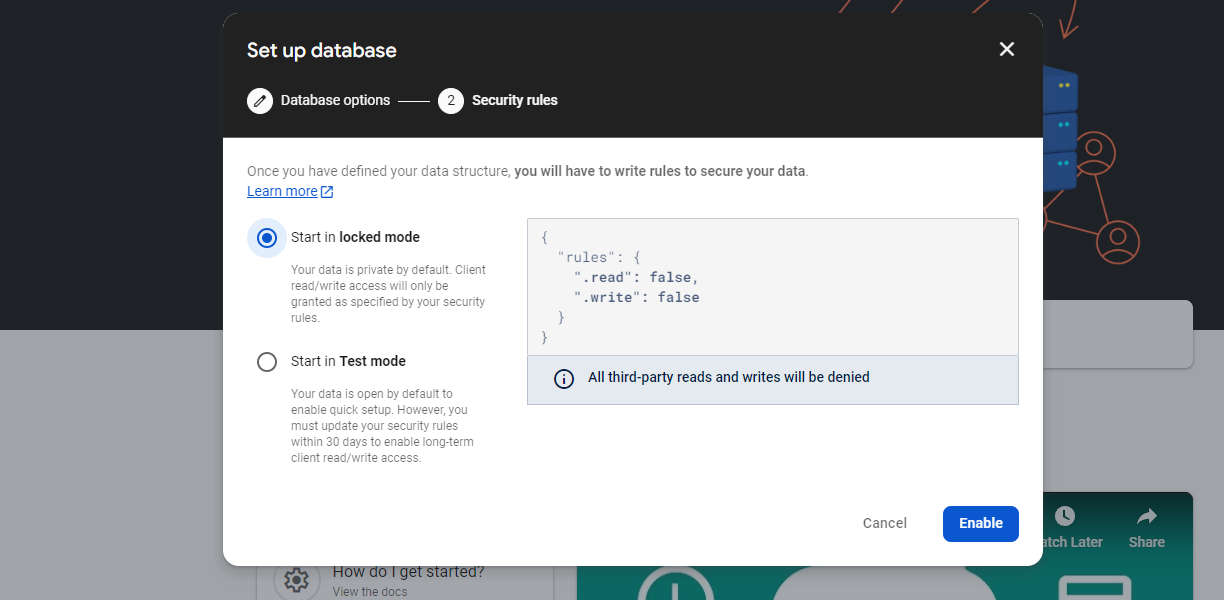
select locked mode otherwise select test mode if you are a developer
and click on enable button #
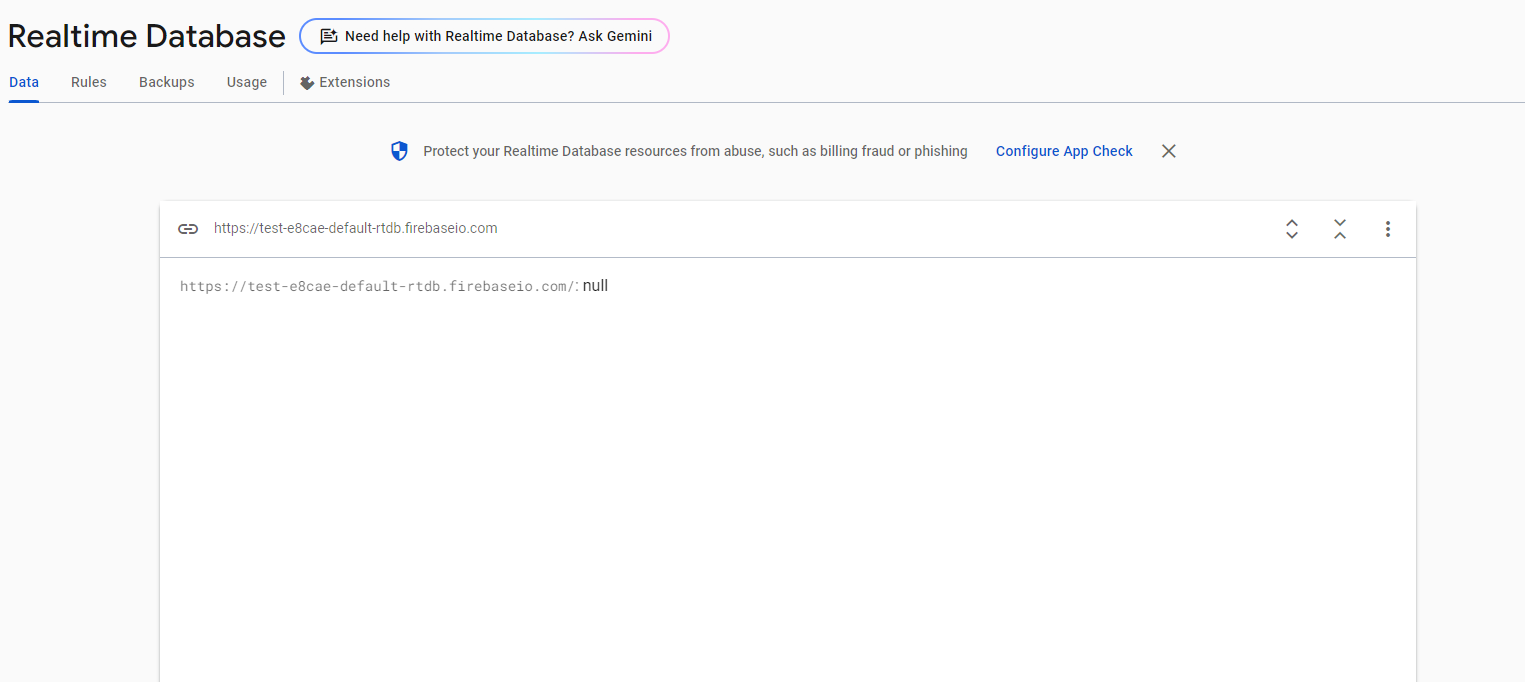
you can get your real-time database URL from here
9th Step
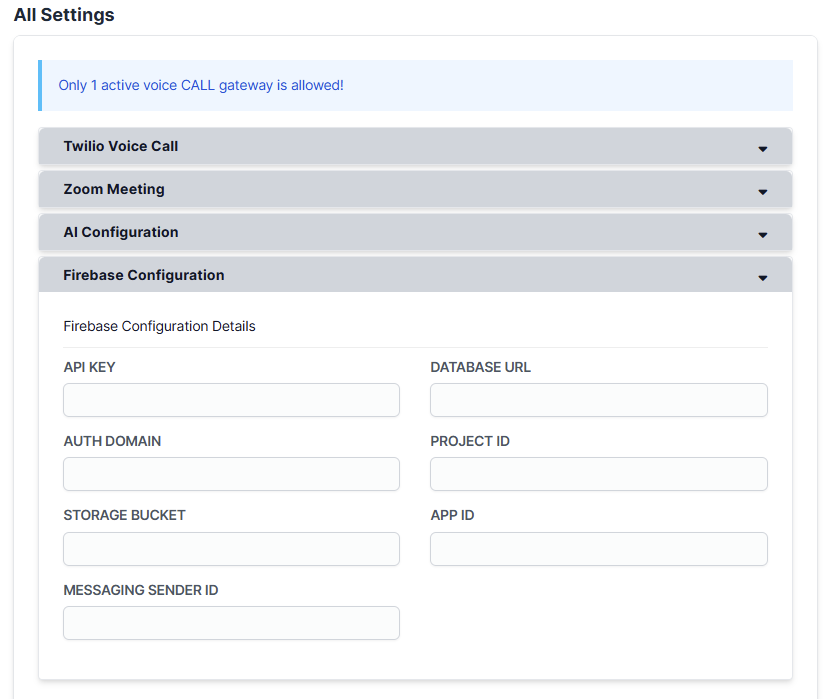
Pull all firebase credentials here : #
https://domain-name/admin/settings?group=lead_manager_misc
VI- Staff Permission #
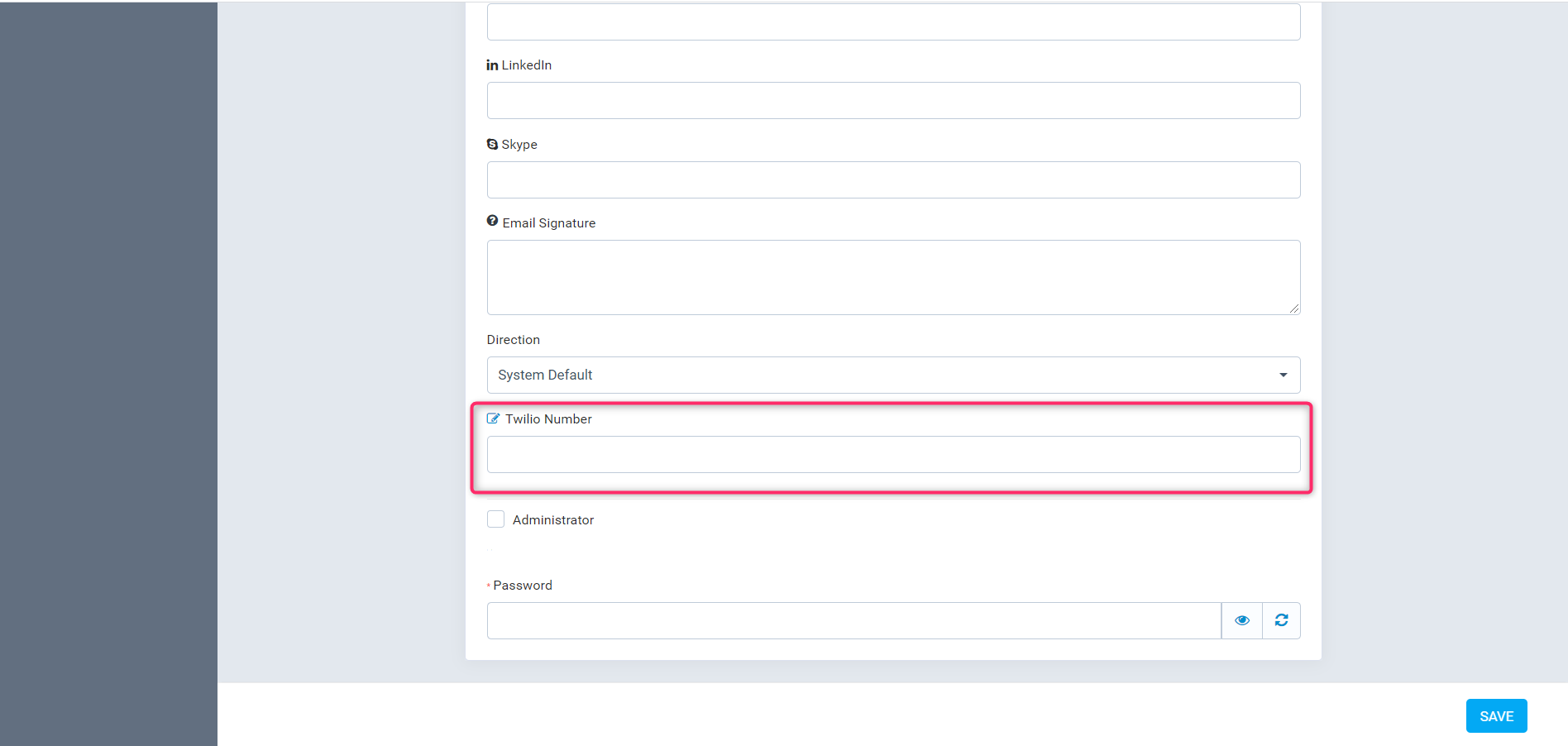
How to assign twilio number to staff. #
Step1: Setup–> Settings–> Staff–> New staff members—>Profile(No special char or space allowed in number)
2nd Step
How to assign Staff permission. #
Step1: Setup–> Settings–> Staff–> New staff members—>Permissions


